Setting up a home office desk for the first time can feel overwhelming. Between choosing the right size, positioning your monitor, running cables, and finding a chair that won’t wreck your back, there are dozens of small decisions that add up to a workspace you either love or dread every morning. This guide breaks the process down into manageable steps so you can build a home office desk setup that actually supports how you work, whether that’s spreadsheets all day, video calls, or a hybrid gaming and work station.

Step 1: Choose the Right Location
Before you buy anything, walk through your home and identify the best spot for a desk. Natural light is a major factor in comfort and focus, so a location near a window (but not facing direct glare on your screen) is ideal. You also want enough wall outlets nearby, or at least an easy path to run a power strip, since a modern desk setup usually involves a computer, monitor, charger, lamp, and sometimes a printer.
Think about noise as well. If you take frequent calls, a spare bedroom or a quiet corner away from household traffic will serve you better than an open living room. If space is tight, a compact corner desk or a fold-down wall desk can carve out a dedicated work zone without taking over a whole room.
Step 2: Pick the Right Desk Size and Shape
Desk size should match both your available floor space and the equipment you plan to use. A single monitor and laptop setup can comfortably fit on a desk as small as 40 inches wide, but if you plan to run two screens side by side, you’ll want at least 55 to 60 inches of surface width. For anyone comparing options built specifically for multi-monitor work, it’s worth browsing Desks for Two Monitors to see which widths and depths accommodate dual-screen arms without crowding your keyboard space.
Shape matters too. An L-shaped desk gives you a separate zone for a laptop and a zone for paperwork or a second monitor, which is useful if your job blends screen work with physical documents. A compact writing desk works well in smaller rooms, while a secretary-style desk with built-in storage compartments is a smart pick if you want your workspace to double as a place to store files, stationery, and mail. If that kind of hidden storage appeals to you, take a look at secretary desks, which combine a fold-out work surface with drawers and cubbies in a smaller footprint.
Step 3: Set the Correct Desk Height
Ergonomics starts with height. When you sit with your feet flat on the floor, your elbows should bend at roughly a 90-degree angle when your hands rest on the keyboard. Standard fixed desks sit around 28 to 30 inches tall, which works for most average-height adults, but if you’re notably taller or shorter, consider an adjustable-height model or a standing desk converter that lets you fine-tune the surface.
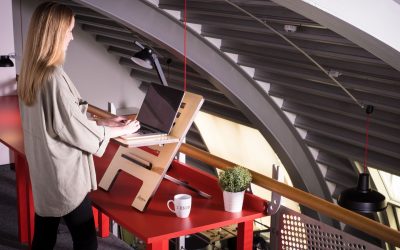
If you alternate between sitting and standing throughout the day, a sit-stand desk is worth the investment. Look for models with memory height presets so you can switch positions without re-measuring every time.
Step 4: Arrange Your Monitor and Screen Setup
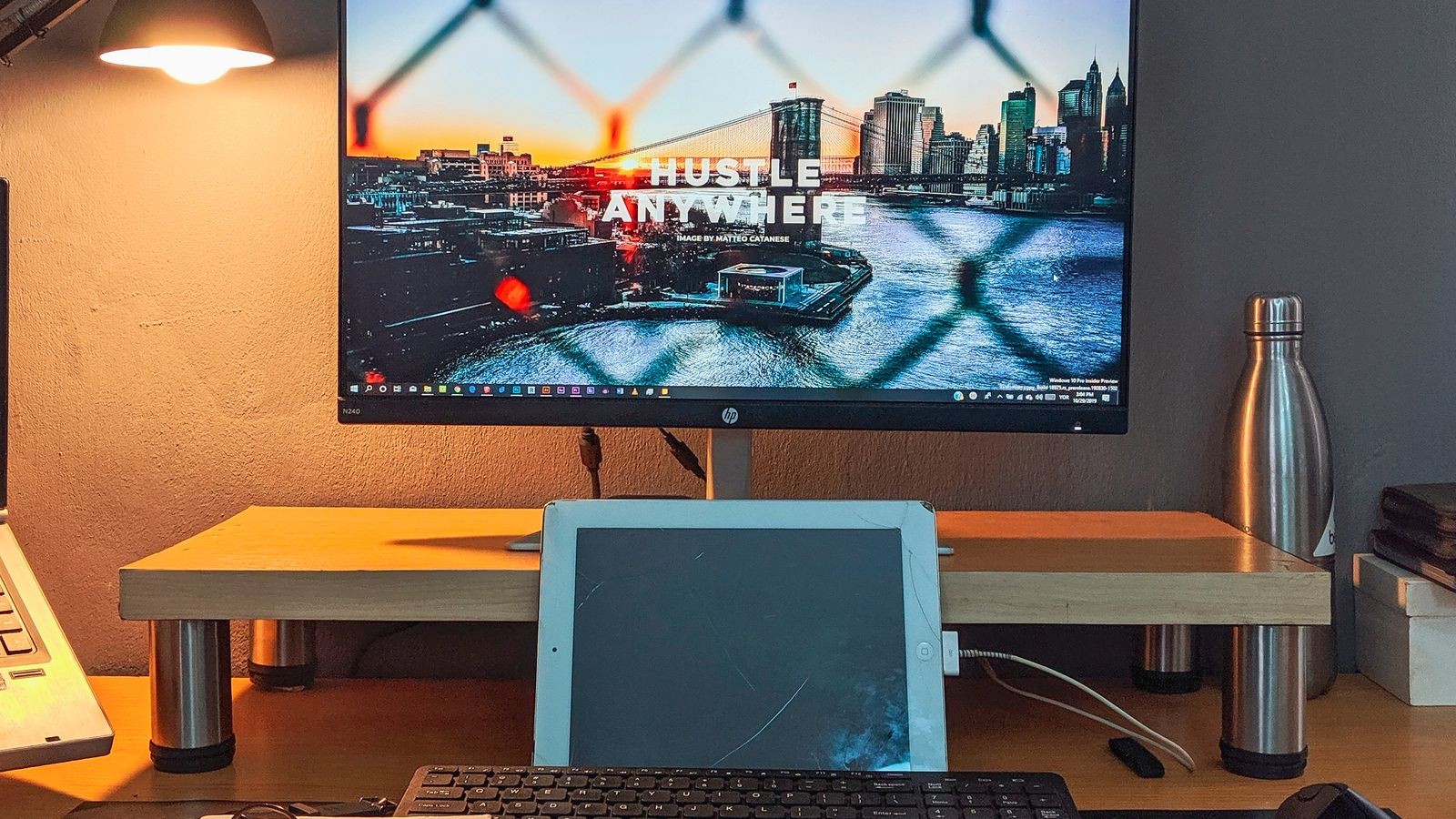
Monitor placement affects neck and eye strain more than almost any other factor in a home office. The top of your screen should sit at or just below eye level, roughly an arm’s length away. If you use a laptop as your main computer, raise it on a stand and pair it with an external keyboard and mouse rather than hunching over a low screen all day.
For those running two monitors, alignment matters just as much as height. Center the pair directly in front of you if you split attention evenly, or angle one screen slightly if one monitor is your primary display. A desk with a wide, deep surface makes it far easier to position dual monitor arms correctly, which is another reason to check Desks for Two Monitors before committing to a smaller model that might crowd your setup.
Step 5: Choose a Supportive Chair
Your desk is only half the equation. A chair with adjustable lumbar support, seat height, and armrests makes a bigger day-to-day difference in comfort than almost any other purchase you’ll make for your home office. Sit in the chair with your desk height already set so you can confirm your knees form roughly a 90-degree angle and your forearms rest level with the desk surface.
Step 6: Manage Cables and Cords
A tangle of cords under your desk is more than an eyesore; it’s a tripping hazard and makes cleaning difficult. Use a cable tray mounted underneath the desk to bundle power cords and charging cables out of sight. Velcro ties or reusable cable clips keep individual cords from sliding around, and a labeled power strip makes it easy to identify which plug belongs to which device when you need to troubleshoot.
If your desk has a built-in grommet hole, route your monitor and charging cables through it to keep the desktop itself clear. A clean surface not only looks better on video calls but also gives you more usable space for notebooks, a mug, or a small plant.
Step 7: Add Lighting and Accessories
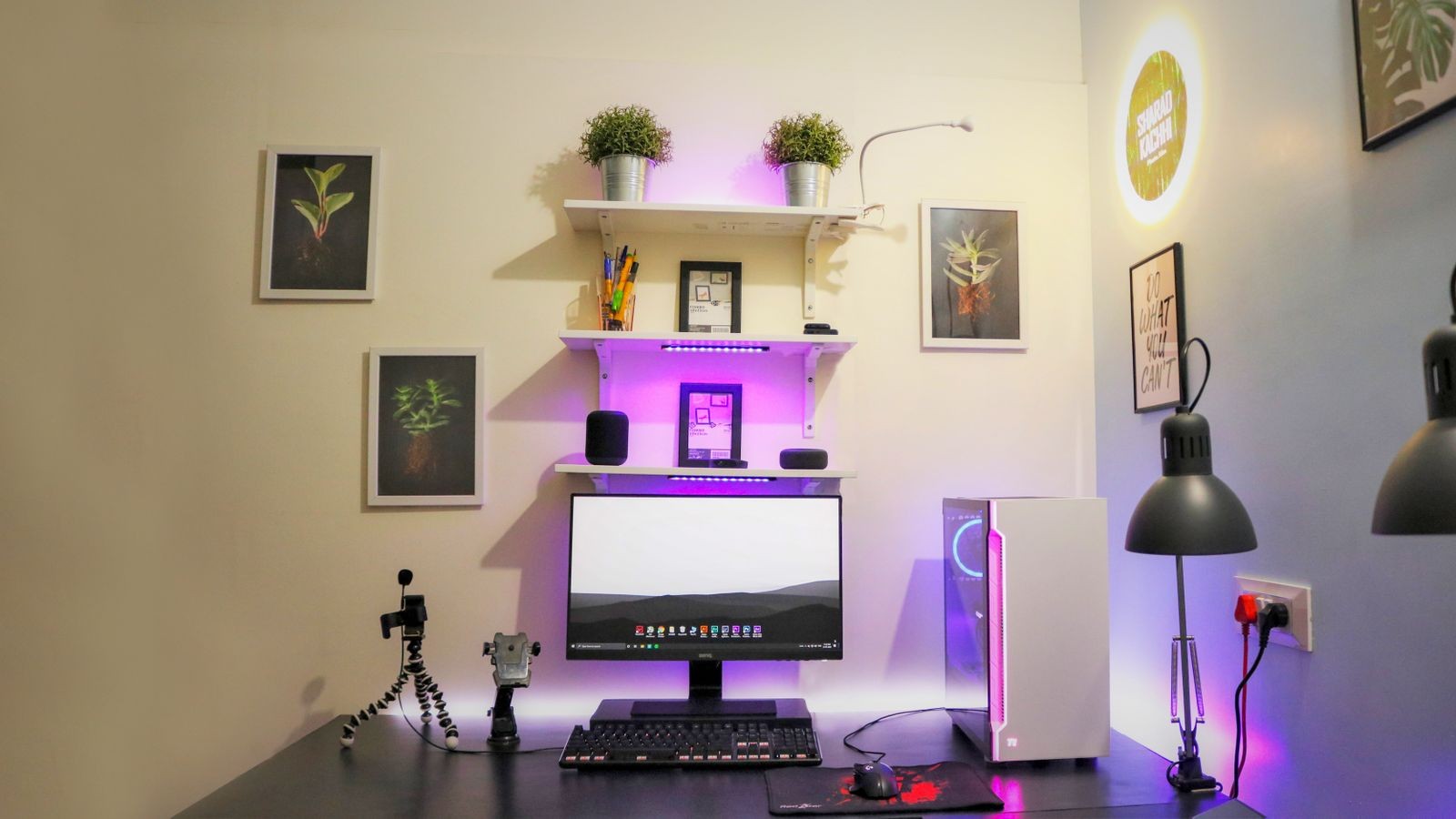
Overhead lighting alone is rarely enough for focused work, especially in the evening. A desk lamp with adjustable brightness and color temperature reduces eye strain during long sessions and adds a layer of task lighting exactly where you need it. Position the lamp on the opposite side of your dominant hand to avoid casting shadows across your keyboard.
Beyond lighting, a few accessories go a long way: a monitor riser or arm frees up desk space, a keyboard tray keeps typing height consistent, and a small drawer organizer keeps pens, chargers, and sticky notes from cluttering the surface. If your setup doubles as a gaming space in the evenings, it’s worth exploring desks purpose-built for that hybrid use. Options featured among the best desks for gaming setups often include cable management channels, cup holders, and headset hooks that work just as well for a productivity-focused workday.
Step 8: Personalize for Comfort and Focus
Once the functional pieces are in place, personalize the space so you actually want to spend time there. A plant, a piece of art, or a photo can make the corner feel less like a sterile workstation. Keep a small water bottle within reach and consider an anti-fatigue mat if you plan to stand for part of the day.
Storage is worth revisiting here too. If your desk lacks drawers, a rolling file cabinet or a set of floating shelves nearby keeps documents and supplies organized without eating into your work surface.
Common Mistakes to Avoid
- Buying a desk that’s too small for your equipment. Measure your monitor, keyboard, and any peripherals before ordering, especially if you plan to run two screens.
- Ignoring cable management until after setup. It’s much easier to route cords through grommets and trays before the desk is fully loaded with equipment.
- Skipping the chair upgrade. A great desk paired with an unsupportive chair still leads to discomfort within a few hours.
- Placing the desk in a high-glare spot. Facing a window directly can wash out your screen and cause squinting throughout the day.
- Overcrowding the surface with decor. Leave enough open space for your mouse, notebook, and coffee cup, or the desk will feel smaller than it actually is.
Budget Tips
You don’t need to buy everything at once. Start with the desk and chair, since those two pieces determine your daily comfort more than any accessory. Add a monitor arm, cable tray, and lighting as your budget allows. Many desk manufacturers also sell modular add-ons like keyboard trays and monitor risers separately, so you can upgrade gradually instead of replacing the whole setup later.
Frequently Asked Questions
What is the ideal desk height for a home office?
Most adults are comfortable with a desk between 28 and 30 inches tall, but the right height depends on your own body proportions. An adjustable desk removes the guesswork entirely.
How much desk space do I need for two monitors?
Aim for at least 55 to 60 inches of width if you’re running dual monitors side by side, plus extra depth if you’re using monitor arms rather than stands.
Do I need a standing desk?
Not necessarily, but alternating between sitting and standing throughout the day can reduce stiffness and improve circulation during long work sessions.
What’s the easiest way to manage cables under a desk?
A mounted cable tray combined with velcro ties and a labeled power strip handles most home office setups without much effort.
Can a desk setup double for both work and gaming?
Yes, many desks designed for gaming setups include the same cable management and ergonomic features that make them equally functional for daily work.
Final Thoughts
A well-planned home office desk setup comes down to matching the desk, chair, and layout to how you actually work. Start with location and size, dial in the ergonomics, then layer in lighting, cable management, and personal touches. Taking it step by step, rather than buying everything at once, makes it far easier to build a workspace that stays comfortable and functional for years.