If your hands feel cramped, sore, or fatigued after a few hours at the computer, the culprit is often the input device itself. Standard mice are designed around average-to-large hand sizes and a single grip style, which leaves many users — especially those with small hands or a preference for stationary pointing devices — reaching, gripping, and straining in ways that add up to real discomfort. Building a small, purpose-picked “ergonomic input kit” solves this by matching the device to the hand, the task, and the workspace rather than forcing one mouse to do everything.
This guide walks through exactly how to assemble a starter kit built around three complementary tools: an ergonomic mouse sized for small hands, a finger trackball, and a roller bar mouse. Each plays a different role, and together they give you options for different tasks, postures, and moments of fatigue throughout the day.
What You’ll Need
Before you start swapping devices, gather the essentials so the transition is smooth rather than frustrating.
- A compact ergonomic mouse designed for small or narrow hands (shorter body, narrower grip width, lower profile buttons).
- A finger-operated trackball mouse for stationary, low-travel pointing.
- A centered roller bar (rollerbar) mouse for symmetrical, neutral-wrist use.
- A USB hub or extra USB-A/USB-C ports if you plan to keep more than one device connected at once.
- A wrist rest or gel pad, useful during the adjustment period as your hand relearns grip patterns.
- A notebook or notes app to track which device feels best for which task — this becomes valuable data after a week or two.
Step 1: Understand Why One Mouse Isn’t Enough
Most people assume “ergonomic” means one specific shape, but ergonomics is really about matching a tool to your body and your workflow. A standard-size mouse forces small hands to stretch fingers across buttons and scroll wheels, which strains tendons over a full workday. A trackball removes the need to move your whole arm across a desk, which is helpful in tight workspaces or for anyone managing shoulder or elbow discomfort. A roller bar mouse centers the input device in front of the keyboard instead of off to one side, which keeps the wrist in a neutral, forward-facing position rather than twisted outward. None of these solve every problem alone — that’s exactly why a starter kit with all three gives you flexibility.
Step 2: Start With the Ergonomic Mouse for Small Hands
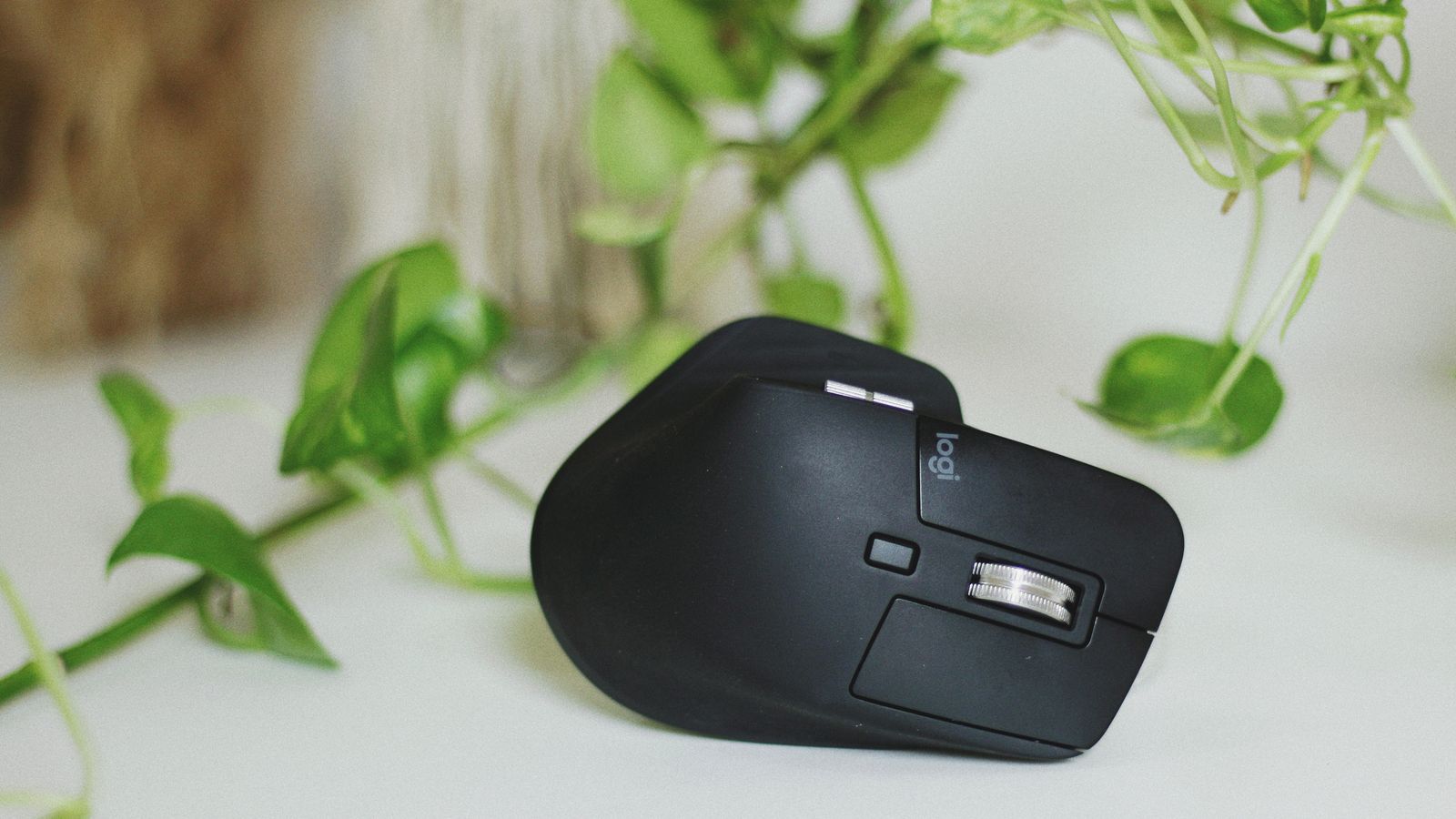
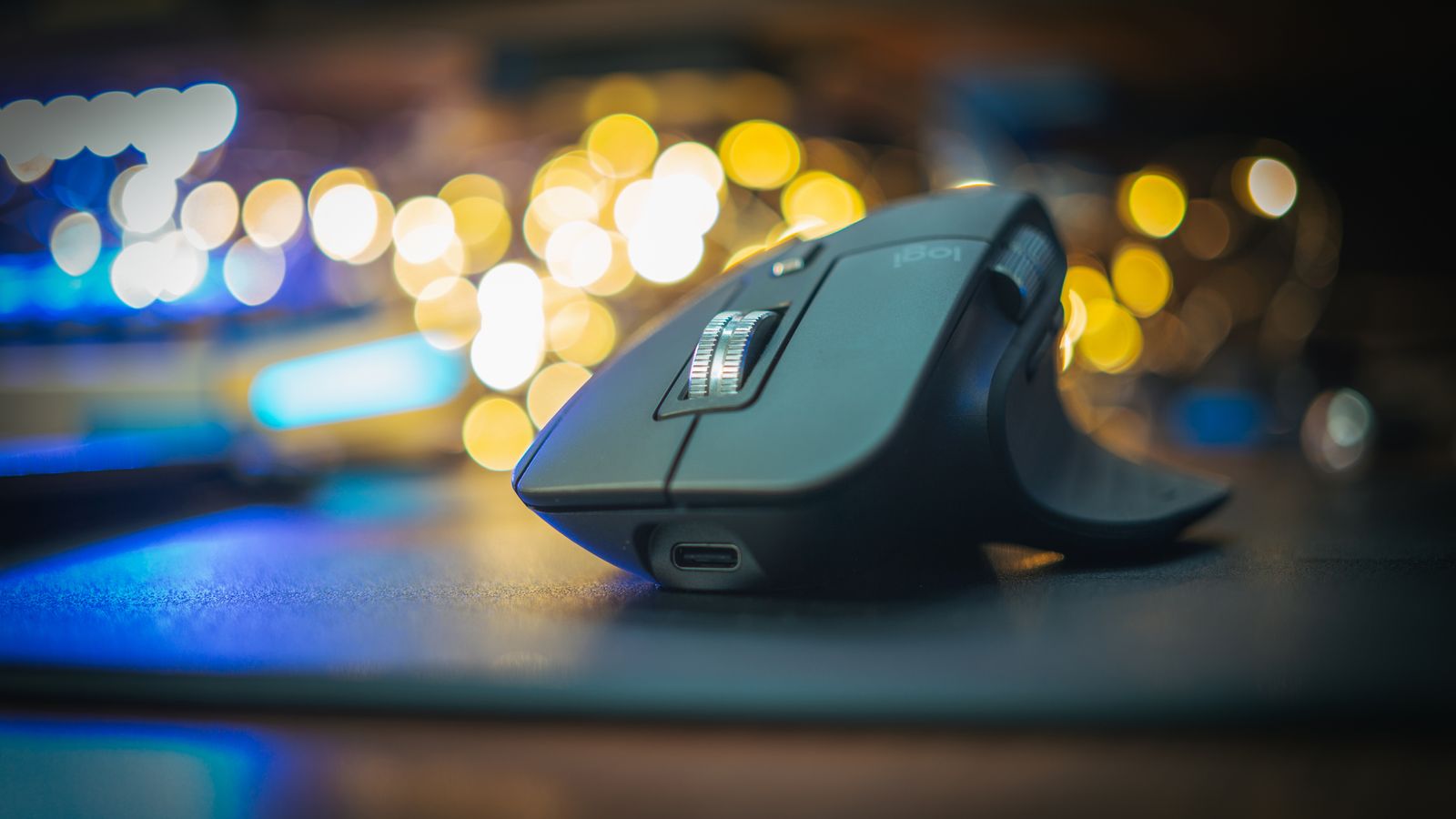
Begin your kit with a mouse sized correctly for your hand, since this is the device you’ll likely reach for most often during general browsing, email, and everyday navigation.
- Measure your hand from the base of the palm to the tip of your middle finger; look for mice explicitly labeled for small or narrow hands, as body length and grip width vary significantly between models.
- Test your grip style — fingertip, claw, or palm — since a mouse shape that suits a palm grip may feel wrong for a fingertip grip.
- Set the pointer speed and DPI so you aren’t overreaching with your fingers to compensate for a mouse that feels too fast or too slow.
- Adjust button placement expectations: smaller mice often place side buttons closer together, so give yourself a day or two to relearn muscle memory.
If you want a curated list of models built specifically for smaller hand sizes, this roundup of Ergonomic Mice for Small Hands is a useful starting point when narrowing down options.
Step 3: Add a Finger Trackball for Stationary Precision
Once the everyday mouse is set up, add a finger trackball as your second tool. This device stays in one place while a ball, operated by your fingers rather than your whole hand, moves the cursor — ideal for detailed work like design, spreadsheets, or photo editing where precision matters more than speed.
- Position the trackball where your fingers can rest naturally on the ball without lifting your wrist off the desk.
- Practice small, controlled movements first; a trackball has a learning curve because cursor speed comes from finger motion rather than arm motion.
- Use the trackball for tasks that require holding a cursor steady, such as fine selection work or precise clicking, and switch back to your standard mouse for fast, sweeping movements.
- Clean the ball and housing every few weeks, since finger oils and dust can make tracking feel gritty over time.
For a comparison of models with different ball sizes and button layouts, browse this list of finger trackballs to find one that matches your finger length and preferred sensitivity.
Step 4: Round Out the Kit With a Roller Bar Mouse
The third piece of the kit addresses a different problem entirely: lateral reaching. A roller bar mouse sits on a bar centered in front of the keyboard, letting you operate the pointer with either hand without twisting your wrist outward to the side of your keyboard tray.
- Mount the roller bar directly beneath your keyboard, following the manufacturer’s setup guide for height and angle.
- Practice rolling the bar left and right with your palm resting flat, rather than gripping and lifting as you would a traditional mouse.
- Use the roller bar during long typing-heavy sessions where you want to avoid reaching sideways every time you need the cursor.
- Alternate hands periodically since the centered design supports both left- and right-handed use, which helps distribute strain evenly.
If a centered, symmetrical input device sounds like the right fit for your desk setup, this guide to the best roller bar mice breaks down the leading options by size and adjustability.
Step 5: Rotate the Devices Based on Task, Not Habit
The real value of a starter kit comes from switching deliberately rather than defaulting to whichever device is closest. Use the small-hand mouse for quick navigation and general use, the finger trackball for precision tasks and tight spaces, and the roller bar mouse for long typing sessions where reaching sideways repeatedly causes strain. Many users find that rotating between devices every hour or two, rather than sticking with one tool all day, meaningfully reduces repetitive strain because different muscle groups share the workload.
Safety Notes and Comfort Tips
- Keep wrists in a neutral, straight position regardless of which device you’re using — none of these tools help if your desk or chair height forces an awkward angle.
- Take short breaks every 30–45 minutes to stretch fingers and wrists, especially while adjusting to a new device.
- If you feel numbness, tingling, or sharp pain rather than mild adjustment soreness, stop and consult a healthcare professional — ergonomic tools reduce strain but don’t replace medical guidance.
- Position each device within easy reach so switching between them doesn’t itself become an awkward stretch.
Common Mistakes to Avoid
- Buying by brand reputation instead of hand size. A well-reviewed mouse can still feel wrong if it’s sized for an average or large hand.
- Expecting instant comfort. Trackballs and roller bar mice both require a short adjustment period; give each device at least a week before judging it.
- Using only one tool out of the kit. The whole point of a starter kit is variety — sticking with just the mouse defeats the purpose of adding a trackball or roller bar.
- Ignoring desk height and chair setup. Even the best input device can’t fully offset a workstation that’s set up at the wrong height.
Frequently Asked Questions
Do I need all three devices at once?
Not necessarily on day one. Many people start with the small-hand mouse, then add a trackball or roller bar mouse once they identify which tasks cause the most discomfort. Building the kit gradually is completely reasonable.
How long does it take to adjust to a trackball or roller bar mouse?
Most users need one to two weeks of regular use before movements start to feel natural. Give yourself that window before deciding whether a device is a good fit.
Can left-handed users benefit from this kit?
Yes — a roller bar mouse in particular is designed for ambidextrous use since it sits centered under the keyboard, and many trackball and small-hand mouse models offer symmetrical or left-hand-friendly layouts as well.
Will switching between devices slow me down?
There’s a brief adjustment period, but most users report that overall comfort and reduced fatigue outweigh any minor slowdown, and switching speed improves quickly with regular use.
What’s the single best device to start with if I can only buy one?
If hand size is your main discomfort trigger, start with a properly sized ergonomic mouse. If reaching or repetitive strain from lateral movement is the bigger issue, start with a roller bar mouse instead.
Final Thoughts
An ergonomic input kit isn’t about finding one perfect mouse — it’s about giving your hands options. Pairing a properly sized ergonomic mouse for small hands with a finger trackball and a roller bar mouse covers everyday navigation, precision work, and long typing sessions without forcing your wrist and fingers into the same repetitive motion all day. Start with the device that addresses your most immediate discomfort, add the others as you notice new patterns of strain, and give each tool a fair adjustment period before deciding what stays in your permanent setup.