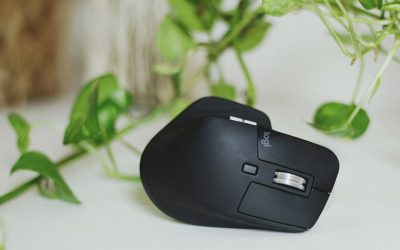
A pen mouse is one of the more delicate input devices on your desk. Its slim barrel, pressure-sensitive tip, and exposed grip make it collect oil, dust, and skin residue faster than a standard mouse, and that buildup can eventually affect tracking accuracy and click response. Learning how to clean and care for your pen mouse the right way keeps the sensor accurate, the buttons responsive, and the barrel looking new for years of daily use.

This guide walks through what you need, a step-by-step cleaning routine, storage and maintenance habits, and answers to the questions people ask most often about keeping a pen mouse in top condition.
Why Pen Mice Need Special Care
Unlike a traditional mouse that sits flat in your palm, a pen mouse is held like a writing instrument. That means your fingers are in constant contact with the barrel, and the tip is dragged across a mat or desk surface with more localized pressure than a standard optical sensor experiences. Over time, this leads to a few predictable problems:
- Oil and sweat from your fingers build up on the grip and barrel, making the surface slick or sticky.
- Dust and lint gather around the optical sensor at the tip, which can cause cursor jitter or skipping.
- The scroll wheel or side buttons accumulate grime, leading to a mushy or delayed click feel.
- The charging port (on wireless models) can collect debris that interferes with a secure connection.
Because a pen mouse is a precision tool, even small amounts of buildup are more noticeable than on a bulkier mouse. Regular, light cleaning prevents these issues before they affect your workflow.
What You’ll Need
Before you start, gather a few simple supplies. You likely already have most of these at home or in your desk drawer.
- A microfiber cloth (lint-free)
- Isopropyl alcohol (70-90%)
- Cotton swabs
- Compressed air (a small canned duster works well)
- A soft-bristled brush, such as an old toothbrush
- Mild dish soap and water (optional, for the grip only)
Avoid household glass cleaners, bleach, or ammonia-based products. These can strip coatings from the barrel or damage the plastic housing around the sensor and buttons.
Step-by-Step: How to Clean Your Pen Mouse
- Power off and disconnect. If your pen mouse is wireless, turn it off or remove the battery before cleaning. For wired models, unplug the USB cable. This prevents accidental input and protects the internal electronics from moisture.
- Wipe down the barrel and grip. Dampen a microfiber cloth with a small amount of isopropyl alcohol and gently wipe the entire length of the barrel, including the grip area where your fingers rest most often. Avoid soaking the cloth; you only need enough moisture to lift oils, not enough to drip into seams.
- Clean the buttons and scroll wheel. Dip a cotton swab in isopropyl alcohol and carefully run it around the edges of each button and along the scroll wheel groove. This is where grime tends to accumulate and cause sticky or unresponsive clicks.
- Clear the sensor area with compressed air. Hold the can upright and give the tip and sensor a few short bursts of air from a few inches away. This dislodges dust and lint without introducing moisture near sensitive optics.
- Brush stubborn debris. If dust has settled into tight seams or around the tip, use a soft-bristled brush to loosen it, then follow up with another round of compressed air.
- Check the charging port or USB connector. For wireless models, inspect the charging port for lint or debris. A dry cotton swab or a toothpick wrapped in a bit of cloth can gently clear the opening. Never insert anything metal into the port.
- Let it dry completely. Leave the pen mouse on a clean, dry surface for at least ten to fifteen minutes before reconnecting or turning it back on. This ensures any residual alcohol has fully evaporated.
- Reassemble and test. Power the device back on, reconnect if needed, and test the buttons, scroll wheel, and cursor tracking on your desk mat to confirm everything responds normally.

Ongoing Maintenance Tips
A single deep clean helps, but consistent habits are what keep a pen mouse performing well over the long term.
Clean on a Schedule
A quick wipe-down of the barrel and tip once a week is usually enough for regular office use. If you use your pen mouse for graphic design or extended sessions daily, consider a light cleaning every few days and a fuller clean, as described above, once a month.
Use It on a Proper Mat
A smooth, purpose-built mouse mat reduces the amount of dust and fiber your pen mouse picks up compared to using it directly on a fabric desk pad or bare wood. This alone can significantly cut down on sensor debris.
Wash Your Hands Before Long Sessions
Since the grip is in near-constant contact with your fingers, clean hands mean less oil transfer to the barrel. This small habit noticeably slows down buildup between cleanings.
Store It Properly
When not in use for extended periods, store your pen mouse in a drawer or a soft pouch rather than leaving it exposed on the desk, where it collects ambient dust. If it uses a wireless dongle, keep the dongle and pen mouse together to avoid losing the pairing hardware.
Check the Battery Contacts
For battery-powered pen mice, occasionally inspect the battery compartment for corrosion, especially if the device has sat unused for a while. Wipe contacts with a dry cloth or a cotton swab lightly dampened with alcohol if you notice any residue.
Signs Your Pen Mouse Needs Attention
Watch for these indicators that it’s time for a cleaning session rather than waiting for a scheduled one:
- The cursor skips, jumps, or lags during normal movement.
- Clicks feel delayed, double-register, or require extra pressure.
- The scroll wheel feels gritty or skips increments.
- The barrel feels tacky or leaves a residue on your fingers.
- A wireless model struggles to hold a charge or reconnect, which can point to a dirty charging port.
If you’ve cleaned thoroughly and problems persist, the issue may be mechanical wear rather than dirt, and it may be time to consider a replacement. Browsing a roundup of Pen Mice is a good starting point if your current unit is nearing the end of its usable life.
Common Mistakes to Avoid
- Using too much liquid. Excess alcohol can seep into seams and damage internal components. Always dampen the cloth or swab, never pour liquid directly onto the device.
- Cleaning while powered on. This risks accidental clicks or scrolls that could interfere with open applications, and increases the chance of short-circuiting a wireless charging connection.
- Using abrasive materials. Paper towels or rough cloths can scratch the barrel’s coating over time. Stick to microfiber.
- Ignoring the sensor tip. Many users clean the grip but skip the tip, which is actually the most performance-critical area to keep clear of debris.
- Skipping the drying step. Reconnecting or powering on too soon after using alcohol can trap moisture inside the housing.

Pairing Your Pen Mouse With the Right Setup
Care and cleaning go hand in hand with using the right accessories around your pen mouse. A well-matched keyboard, for example, reduces the amount of hand movement and repositioning that can accelerate wear on your pen mouse’s grip. Many ergonomic setups pair a pen mouse with a tenkeyless keyboard to save desk space and keep the mouse closer to a natural hand position, reducing strain and reach.
If you’re building or refreshing your workstation and want a keyboard that’s easy to keep clean alongside your pen mouse, it’s also worth looking at the best hot swappable keyboards, which typically use removable keycaps that make thorough cleaning far simpler than fixed-cap boards.
Frequently Asked Questions
How often should I clean my pen mouse?
A light wipe-down weekly and a deeper clean monthly is a reasonable routine for most users. Heavy daily use, such as digital art or extended data entry, may call for more frequent attention.
Can I use disinfecting wipes instead of alcohol and a cloth?
Alcohol-based disinfecting wipes can work in a pinch, but check the label for bleach or strong chemical additives first, as these can degrade plastic and coatings faster than isopropyl alcohol.
Is it safe to clean the sensor directly?
Yes, but use compressed air rather than liquid near the sensor. Liquid near the optical components can cause tracking issues or permanent damage.
My pen mouse tip feels loose after cleaning. What should I do?
Make sure it dried completely before reassembly, since trapped moisture can sometimes cause temporary swelling in plastic components. If looseness continues after a full dry-out period, it may indicate wear rather than a cleaning issue.
How long does a pen mouse typically last with proper care?
With regular cleaning and careful storage, most pen mice remain reliable for several years of daily use. Sensor accuracy and button responsiveness are usually the first signs of aging, well before the housing itself wears out.
Final Thoughts
Keeping a pen mouse clean is a small habit that pays off in smoother tracking, more responsive clicks, and a longer usable lifespan. A simple weekly wipe-down combined with a monthly deep clean covers most of what’s needed, and knowing the warning signs of buildup means you can address issues before they affect your work. If your current device is showing wear that cleaning can’t fix, exploring the latest Pen Mice on the market is a practical next step toward a more comfortable, precise setup.