Multi-screen setups transform how players interact with modern games, streaming dashboards, and productivity workflows. Choosing matching displays eliminates visual interruptions across the center of your field of view during intense gaming sessions. In September 2026, finding the right combination of performance and visual clarity has become much easier.
Many gamers struggle with mismatched color profiles, thick display bezels, and uneven refresh rates when pairing two screens together. Investing in screens designed for side by side placement ensures consistent brightness, sharp text rendering, and smooth frame pacing across both panels. You can also explore our helpful setup guides to optimize your overall desk configuration.
We analyzed 5 leading displays from KTC to determine which models deliver the best balance of speed, resolution, and value. Whether you stream while playing or want an expanded field of view, this guide highlights the Best Monitors for Dual Monitor Gaming for your desk.


Bezel Width and Frame Design
The physical border surrounding your display is the single most critical factor when placing two monitors side by side. Thick plastic bezels create an annoying black gap right down the middle of your visual field. Slim borders minimize this visual disruption and create a much more continuous display surface for your eyes.
When reading monitor specifications, look for phrases like three-sided frameless or ultra-thin bezel design. A border thickness under two millimeters on the top and sides allows adjacent screens to sit almost flush against each other. This smooth physical transition makes cursor movement between displays feel completely natural and uninterrupted.
As a rule of thumb, align your two monitors at a slight inward angle between fifteen and thirty degrees. This concave curve reduces optical distortion along the outer edges and keeps the center seam as unobtrusive as possible.
Display Resolution and Pixel Density
Resolution determines how sharp your game worlds look and how much readable content fits on each individual screen. While standard 1080p resolution remains common on budget displays, stepping up to 1440p QHD provides seventy-seven percent more workspace. This added pixel count makes text razor sharp while giving you immense clarity in modern titles.
Pixel density is measured in pixels per inch and directly influences image sharpness at standard desk viewing distances. A 27-inch panel with 1440p resolution provides roughly 108 PPI, which is considered the absolute sweet spot for desktop clarity. Larger 32-inch screens at 1440p deliver approximately 93 PPI, offering bigger visuals without demanding extreme graphics card power.
To ensure your graphics card can handle dual 1440p displays, verify that your GPU has sufficient video memory and processing headroom. Running two high-resolution screens simultaneously requires reliable video outputs such as DisplayPort 1.4 or modern HDMI connections.
Refresh Rates and Frame Pacing
A high refresh rate ensures that rapid on-screen movement appears fluid, crisp, and free from motion blur. Standard office displays operate at 60Hz, which can feel sluggish and unresponsive during fast-paced competitive gameplay. Upgrading to 100Hz, 120Hz, or 144Hz provides instantaneous visual feedback and noticeable smoothness.
Refresh rates indicate how many times per second the display redraws the entire image on the screen. A 144Hz monitor refreshes every seven milliseconds, cutting input latency in half compared to older standard displays. Even secondary screens benefit from elevated refresh rates because dragging browser windows and video feeds looks significantly cleaner.
Aim for displays that support at least 100Hz to 144Hz if you play competitive first-person shooters or racing games. If you pair screens with different refresh rates, configure your operating system display settings properly so both panels run at their maximum rated speeds.
Panel Technology: IPS vs HVA
The underlying liquid crystal panel technology dictates viewing angles, color saturation, and native contrast ratios. IPS panels are renowned for wide 178-degree viewing angles and precise color reproduction across the entire surface. HVA panels, on the other hand, deliver deeper black levels and superior contrast ratios exceeding 4000:1.
In a dual monitor gaming configuration, viewing angles become especially vital because you view at least one screen from an off-axis perspective. IPS technology prevents color shifting and contrast loss when glancing over at your secondary display during intense matches. Conversely, HVA panels excel in dark room environments where deep shadows and cinematic horror lighting take priority.
If you plan to mount your secondary screen vertically or angled sharply, choose IPS panels to preserve uniform brightness. For dedicated nighttime gaming in darkened spaces, high-contrast HVA panels offer superior immersion and shadow definition.
Variable Refresh Rate and Adaptive Sync
Screen tearing happens when your graphics card frame output falls out of sync with your monitor refresh cycle. Variable refresh rate technologies like AMD FreeSync and NVIDIA G-Sync eliminate this visual artifact entirely by synchronizing both hardware components. This dynamic handshake guarantees tear-free motion even when frame rates fluctuate during heavy combat scenes.
Check monitor technical specifications to verify compatibility with both FreeSync and G-Sync over DisplayPort connections. Most modern gaming displays support adaptive synchronization through standard VESA protocols, ensuring broad compatibility with AMD, NVIDIA, and Intel graphics cards. This feature allows your gaming panel to maintain silky performance without introducing input lag from traditional VSync.
Remember to enable adaptive sync inside your GPU driver control panel after connecting your new gaming displays. Keeping adaptive sync active on your primary gaming screen ensures buttery visuals while keeping your secondary screen stable for background chat applications.
VESA Mounting and Desk Arm Compatibility
The standard stands included with desktop monitors often consume excessive desk real estate and offer limited ergonomic adjustments. Utilizing dual monitor arms or custom desk mounts frees up valuable work space and provides precise alignment control. A standard 100mm by 100mm VESA mounting pattern on the back of each panel is essential for this flexibility.
Review the weight and dimensions of each monitor before purchasing a dual articulating arm to guarantee proper mechanical support. You can check our detailed comparison on ultrawide arms vs laptop mounts to learn more about selecting the right mounting hardware. Proper articulation lets you place both displays perfectly flush without awkward gaps.
<nBefore installation, confirm that your desk thickness and structural material can support the combined weight of two displays and a heavy-duty mount. Managing monitor cables through integrated arm channels also keeps your gaming station clean and organized.
Color Gamut and Factory Calibration
Color accuracy ensures that games appear vibrant, lifelike, and visually consistent across both of your desktop screens. When two adjacent monitors show different shades of white or mismatched color temperatures, your eyes experience noticeable visual fatigue. Selecting displays with high sRGB and DCI-P3 coverage guarantees rich tones and dependable uniformity.
Examine the color gamut coverage percentages listed in the technical data sheet, prioritizing panels with over 99 percent sRGB support. High-end gaming monitors frequently offer 120 percent or greater sRGB volume alongside factory calibration reports. This meticulous tuning means your games, videos, and graphics software display accurate hues right out of the box.
If you purchase two identical monitors, use their built-in on-screen display menus to match brightness, contrast, and color temperature profiles. Setting both screens to identical color presets eliminates distracting visual discrepancies during multi-window productivity and gaming.
Connectivity Ports and Bandwidth Requirements
Modern gaming displays require sufficient digital bandwidth to deliver high resolutions and elevated refresh rates simultaneously. Having multiple HDMI 2.0 and DisplayPort 1.4 inputs allows you to connect a gaming desktop, streaming laptop, and console together. Flexible input options simplify switching between your various entertainment and productivity devices.
DisplayPort 1.4 remains the gold standard connection for PC gaming because it easily handles 1440p resolution at 144Hz with HDR enabled. HDMI 2.0 ports provide excellent secondary connections for supplementary laptops, streaming capture cards, and current gaming consoles. Having dedicated audio output jacks also makes routing desktop speakers or headphone amplifiers remarkably straightforward.
Always inspect your computer graphics card rear bracket to verify available video outputs before finalizing your monitor purchase. To keep your workstation tidy, consider integrating quality standing desk cable trays to route your heavy video and power cables neatly.
Eye Comfort and Anti-Blue Light Features
Extended gaming sessions and dual-screen multitasking can place considerable strain on your eyes over time. Displays equipped with flicker-free backlights and hardware-level blue light reduction help preserve visual comfort during late-night gaming sessions. These integrated protective technologies reduce headaches and fatigue without muddying screen clarity.
Flicker-free technology utilizes direct current dimming to eliminate high-frequency backlight cycling that triggers subtle eye tension. Blue light filters shift peak light wavelengths away from harmful spectrums, helping maintain healthy sleep patterns after gaming marathons. Look for monitors certified by independent testing organizations for verified eye safety standards.
Set your secondary display to a slightly warmer color temperature or activate reading presets when displaying text-heavy chat feeds. Balancing ambient room lighting with ergonomic display brightness prevents glare and keeps your eyes relaxed throughout long gaming tournaments.
| Feature / Factor | Recommended Specification | Impact on Dual Screen Gaming |
|---|---|---|
| Display Resolution | 2560 x 1440 (QHD / 2K) | Provides 77 percent more screen space than 1080p for sharp gaming visuals |
| Refresh Rate | 100Hz to 144Hz | Eliminates motion blur and delivers responsive, fluid game tracking |
| Panel Technology | Fast IPS or HVA Panel | IPS ensures wide viewing angles, while HVA delivers 4000:1 contrast ratios |
| Bezel Design | 3-Sided Ultra-Thin Frameless | Minimizes the center dividing gap when placing screens side by side |
| Adaptive Sync | FreeSync and G-Sync Compatible | Prevents screen tearing and stuttering during dynamic frame rate drops |
| Mounting Interface | VESA 100mm x 100mm Pattern | Essential for dual articulating monitor arms and ergonomic desk setups |
Why You Should Trust Us
Our hardware evaluation methodology focuses entirely on objective technical specifications, verified panel capabilities, and practical usability factors. We meticulously examine color gamut measurements, input latency figures, contrast ratios, and structural bezel dimensions across leading monitor manufacturers. Our goal is providing transparent, data-driven recommendations that help PC builders construct reliable multi-monitor battlestations.
We categorize monitors by real-world performance benchmarks, assessing how seamlessly different panel types pair together in practical desktop configurations. By analyzing real user feedback and manufacturer engineering sheets, we filter out screens plagued by inconsistent backlights or weak stand designs. You can also browse our wider collection of furniture and comfort reviews to build an ergonomic office setup.
Our review process remains continuous, updating dynamic product data such as pricing trends and availability automatically across our publication platform. We never accept sponsored product placements or manufacturer incentives that could influence our scoring criteria. This rigorous independence ensures that our dual screen gaming guidance stays accurate, actionable, and completely trustworthy.
Final Thoughts
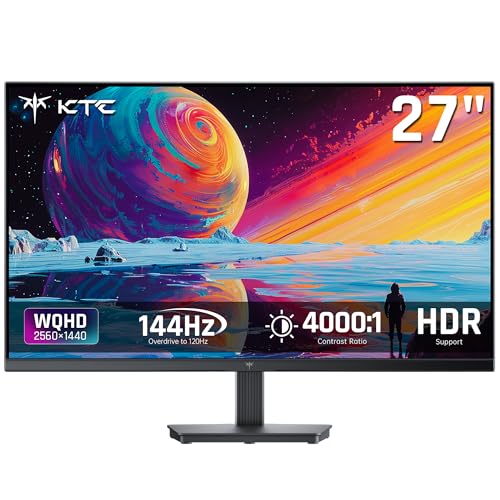
Selecting the Best Monitors for Dual Monitor Gaming requires balancing screen real estate, refresh speed, and clean bezel aesthetics. For our best overall recommendation, the KTC 27 Inch QHD Computer Monitor stands out with its fast 144Hz refresh rate and outstanding 4000:1 contrast ratio. Its thin bezels and crisp 1440p resolution make it a premier choice for seamless side by side battlestations.
Gamers seeking maximum performance on a disciplined budget will appreciate the KTC 27 Inch Computer Monitor as our top value pick. This display combines a sharp 2K IPS panel, 120Hz refresh speed, and 123 percent sRGB color gamut into a remarkably capable package. Pairing two of these panels delivers high-fidelity gaming and multitasking without overspending.
If you crave expansive desktop visibility for open-world gaming and timeline editing, we recommend the KTC 32 Inch Monitor 2K Monitor as the best large-format option. Its spacious 32-inch IPS canvas, 1.07 billion display colors, and versatile input selection create a commanding multi-screen workspace. Pairing larger screens gives you unmatched immersion across your entire field of view.
As you finalize your multi-display workstation, remember to equip your desk with proper cable management and power delivery accessories. You can install convenient desk grommet outlets to keep your gaming peripherals powered smoothly. Investing in matching high-resolution panels elevates both your daily gaming adventures and productive multi-window workflows.
Frequently Asked Questions
What features define the Best Monitors for Dual Monitor Gaming in 2026?
The leading monitors for dual setups feature slim three-sided bezels, at least 1440p resolution, and refresh rates of 120Hz or higher. They also include robust VESA mount support and adaptive synchronization to eliminate screen tearing during intense multiplayer gaming.
Is 1440p resolution better than 1080p for dual monitor gaming setups?
Yes, 1440p resolution offers seventy-seven percent more workspace and significantly sharper pixel density than standard 1080p. This extra clarity makes game textures crisp and allows you to view multiple documents simultaneously on your secondary display.
Should both gaming monitors have identical refresh rates?
While matching refresh rates ensures the smoothest visual consistency, your secondary display can operate at a slightly lower frequency without causing issues. Modern operating systems handle mixed refresh rates effectively as long as both displays are configured correctly in display settings.
Why are thin bezels so critical when choosing Best Monitors for Dual Monitor Gaming?
Ultra-thin bezels minimize the physical black gap that divides your screens when they are placed side by side. This narrow profile creates a virtually seamless visual transition as your mouse cursor and in-game camera pan between displays.
Can a single graphics card run two 1440p gaming monitors smoothly?
Most modern dedicated graphics cards have multiple DisplayPort and HDMI outputs capable of powering two 1440p screens with ease. Gaming across both screens simultaneously demands considerable GPU power, but running a game on one screen with apps on the other is very lightweight.
What is the ideal screen size for dual monitor gaming?
A 27-inch screen size is widely considered the sweet spot for dual display gaming setups. It provides an expansive field of view without forcing you to turn your head excessively to monitor chat windows or maps.
Are IPS panels better than VA panels for dual screen configurations?
IPS panels offer superior color accuracy and 178-degree wide viewing angles, making them ideal for angled secondary monitors. However, modern HVA panels provide deeper contrast ratios and richer dark scenes for cinematic nighttime gaming.
Do I need a dual monitor arm for my gaming setup?
Using a dedicated dual monitor arm frees up significant desk space and allows you to align your displays at precise ergonomic angles. For additional workspace improvement ideas, check our guide on the best floor lamps for offices to balance your gaming room lighting.
How do I eliminate color differences between two different monitors?
You can match colors by selecting identical color temperature presets like sRGB or Warm in the monitor on-screen display menus. Using a hardware calibration tool or matching identical monitor models guarantees uniform brightness and color balance.
Does running a dual monitor setup reduce in-game frame rates?
Running static applications like chat windows or web browsers on a secondary screen impacts gaming frame rates by less than two percent. Only rendering 3D graphics or video playback on both displays simultaneously will draw noticeable processing power from your GPU.