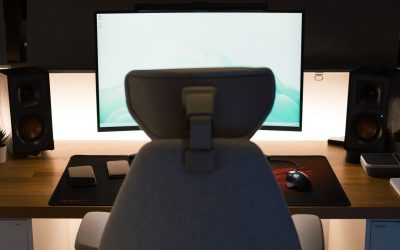
A monitor mount quietly does one of the hardest jobs on your desk: holding several pounds of glass and plastic in exactly the right spot, hour after hour, year after year. Most people never think about it until something goes wrong — a screen that slowly droops, a joint that won’t hold its angle, or a wobble that shows up every time you type. Knowing how often to replace your monitor mount, and what to check along the way, can save your eyes, your neck, and possibly your monitor itself.

How Long Does a Monitor Mount Actually Last?
A quality gas-spring or friction-arm monitor mount typically lasts 5 to 10 years under normal office use. That range is wide because lifespan depends heavily on build quality, how often you adjust it, and how much weight it carries relative to its rated capacity. A budget mount pushed to its weight limit with a heavy ultrawide display may start failing within a year or two, while a well-matched, mid-range arm from a reputable brand can easily outlast the monitor it holds.
Unlike a monitor riser, which is a static platform with no moving parts, an articulating mount relies on springs, hinges, clamps, and tension screws that experience mechanical wear every time you tilt, swivel, or raise the screen. That constant motion is exactly why mounts eventually need replacing while simpler accessories often don’t.
Signs Your Monitor Mount Needs Replacing
1. The Screen Won’t Hold Its Position
The most common failure is “monitor drift” — you set the screen at eye level, walk away, and come back to find it has slowly sunk or tilted downward. This happens when the internal gas spring loses pressure or the tension mechanism wears out. A quick tightening of the tension screw (usually found on the arm’s joint) can buy time, but if the drift returns within days, the spring itself is failing and no amount of adjustment will fix it permanently.
2. Visible Wobble or Shaking
Tap the top corner of your monitor lightly. If the screen bounces or sways noticeably and takes a second or more to settle, the mount’s joints have loosened beyond what a simple screw tightening can resolve. Persistent wobble is also a safety concern — a monitor that shakes during normal typing is more likely to eventually detach or tip.
3. Cracking, Grinding, or Popping Sounds
Smooth arms should move silently or with a soft, consistent resistance. Grinding, popping, or metal-on-metal sounds usually indicate internal damage — a cracked housing, a snapped spring, or stripped internal gearing. These sounds rarely improve and often signal the mount is close to complete failure.
4. Cracks, Rust, or Bent Metal
Inspect the clamp, pole, and arm segments for visible cracks in the plastic housing, rust on exposed metal (common in humid climates or near windows), or any bend in the arm that wasn’t there originally. Structural damage like this is a hard stop — continuing to use a visibly compromised mount risks the monitor falling.
5. The Clamp or Grommet No Longer Grips Securely
Over years of tightening and loosening, the clamp mechanism that attaches the mount to your desk can wear out, leaving it unable to grip the desk edge firmly. If you notice the entire mount shifting or rotating on the desk itself (not just the arm moving), the base clamp has failed.
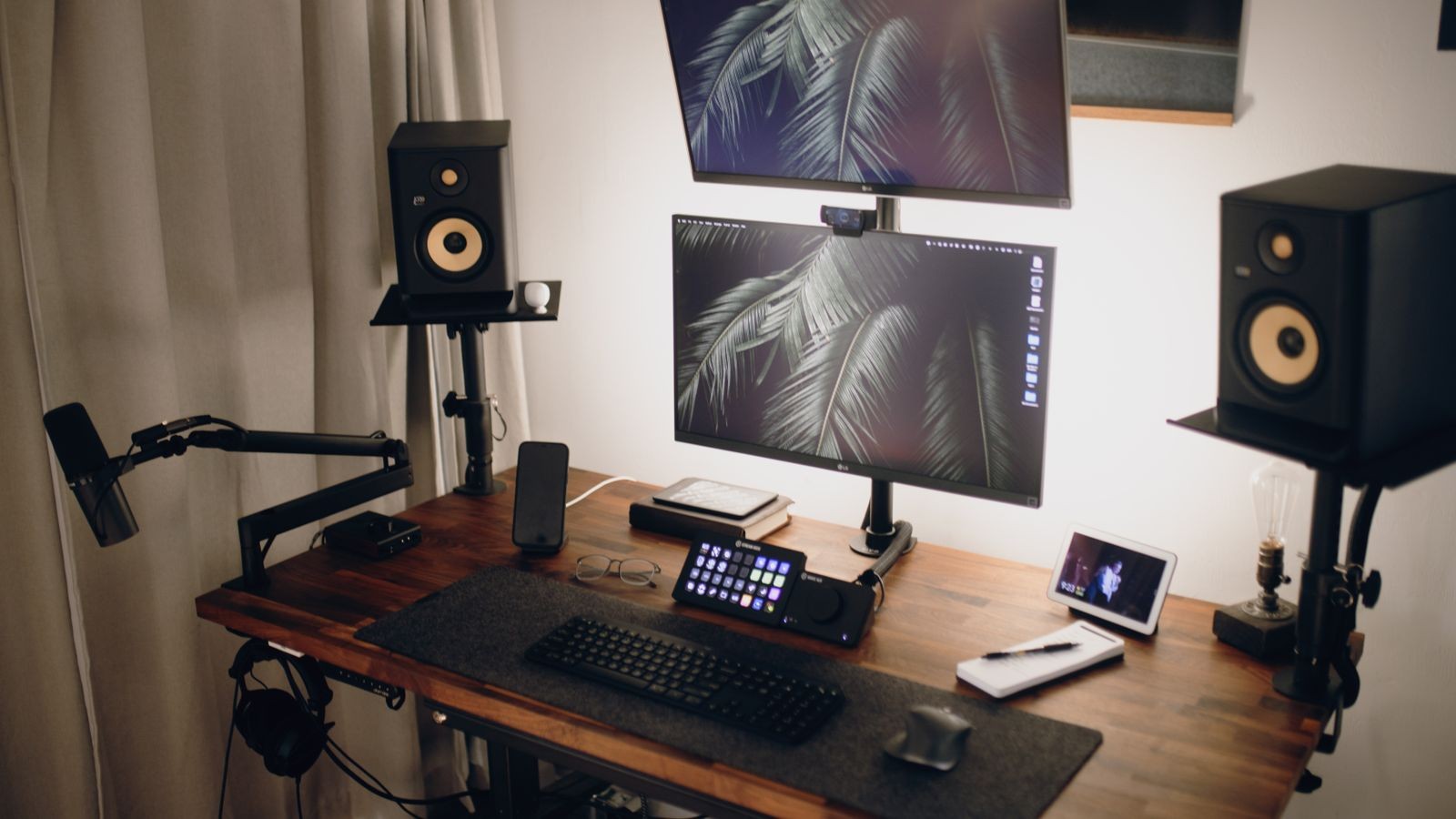
How Often Should You Inspect Your Mount?
You don’t need to replace a mount on a fixed schedule, but a quick inspection every few months keeps small issues from becoming safety hazards. Check for:
- Any change in how easily the arm moves compared to when it was new
- Screws that have worked loose (a quick check with an Allen key or screwdriver)
- Dust or grime buildup around joints, which can accelerate wear
- Whether the clamp is still flush and tight against the desk
If you recently upgraded to a heavier monitor — especially a larger curved or ultrawide model — recheck the mount’s published weight rating. Running a mount above its rated capacity is one of the fastest ways to shorten its lifespan, even if it appears to hold the screen fine at first.
Factors That Shorten a Mount’s Lifespan
Overloading Beyond the Weight Rating
Every mount lists a supported weight range, usually printed on the box or in the manual. Mounting a monitor near or above the upper limit puts constant strain on the gas spring, causing it to lose tension far sooner than if the load were comfortably within range.
Frequent Repositioning
Standing desk users who raise and lower their setup multiple times a day put significantly more mechanical stress on a mount’s joints than someone who sets the angle once and rarely touches it again. This isn’t a reason to avoid adjusting your setup — ergonomic adjustment matters — but it does mean frequent movers should budget for replacement sooner.
Environmental Exposure
Humidity, direct sunlight, and dust all accelerate wear on metal joints and plastic housings. A mount near a window or in a non-climate-controlled space will typically show signs of aging faster than one in a stable indoor office.
Low-Quality Materials
Entry-level mounts often use thinner gauge steel and simpler spring mechanisms to hit a lower price point. They can work perfectly well for lighter monitors but tend to show wear noticeably faster than mid-range or premium options built with reinforced housings and higher-grade springs.
Repair or Replace? A Quick Decision Guide
Not every issue means you need a brand-new mount. Use this quick checklist:
- Tighten first: If the screen droops but everything else feels solid, try tightening the tension screw before assuming failure.
- Check compatibility: If you’ve upgraded monitors and the mount now seems undersized, the fix may be switching to a mount rated for the new weight rather than diagnosing a “fault” that isn’t really there.
- Replace on structural damage: Cracks, bent metal, rust, or grinding noises mean it’s time to retire the mount entirely — these issues won’t resolve with adjustment.
- Replace on repeated drift: If tightening the tension mechanism stops working within a few days each time, the internal spring is worn out and replacement is the only lasting fix.
If you’re shopping for a replacement, browse our roundup of Monitor Mounts to compare weight capacities, arm reach, and build quality across current models. For a simpler, static alternative that skips moving parts entirely, a fixed platform from our guide to monitor risers is worth considering if you rarely reposition your screen.
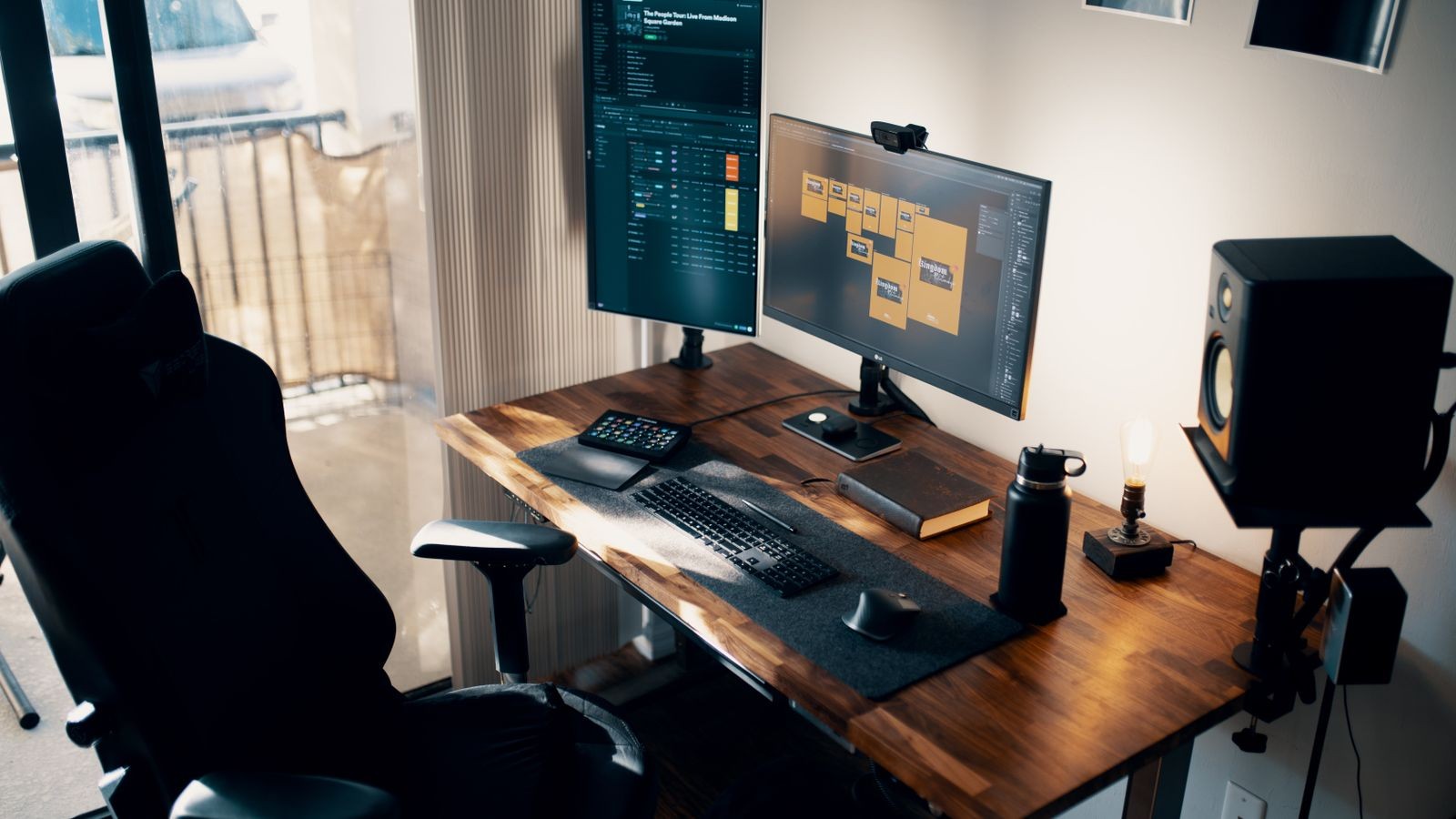
Common Mistakes to Avoid
- Ignoring the weight rating: Always check your monitor’s actual weight (including any added light bars or webcams) against the mount’s rated range before assuming it’s a good match.
- Over-tightening tension screws: Cranking the screw too far to compensate for drift can strip the mechanism entirely, making the problem worse rather than better.
- Skipping the clamp check: A loose base clamp is often mistaken for a failing arm. Always rule out the clamp before replacing the whole unit.
- Buying based on price alone: If you do heavy, detailed work — like coding across multiple windows — pair a durable mount with a screen suited to the task; see our picks for the best monitors for programming for displays that hold up well in that kind of setup.
Frequently Asked Questions
Can I just replace the gas spring instead of the whole mount?
On some premium mounts, the internal spring cartridge is replaceable, but this varies by brand and model and often requires ordering a specific part. For most consumer-grade mounts, replacing the entire arm is more practical and often similarly priced to a spring cartridge alone.
Is it normal for a new mount to feel stiff at first?
Yes. Many mounts ship with the tension set slightly high and loosen naturally within the first few weeks of use. Give it a short break-in period before assuming something is wrong.
Does a lifetime warranty mean I never have to replace my mount?
A warranty covers manufacturing defects, not normal wear from years of use. Most warranties won’t cover a spring that has simply worn out after extended service, so plan on eventual replacement even with a warrantied product.
Should I replace both monitors’ mounts at the same time in a dual setup?
Not necessarily. Inspect each arm individually — one side often bears more adjustment activity than the other and may wear out first. Replace based on condition, not as a matched pair.
Final Thoughts
A monitor mount is a small investment that protects a much larger one — your display, your posture, and your comfort during long work sessions. Rather than waiting for a dramatic failure, build a habit of a quick visual and functional check every few months. Catching drift, wobble, or clamp looseness early lets you decide calmly between a simple tightening and a full replacement, instead of scrambling after your screen has already slipped out of position.