Quick Answer: The best monitors for programming prioritize pixel density over raw specs — a sharp 1440p or 4K panel that renders small text cleanly, paired with a matte anti-glare coating and a flicker-free backlight for long reading sessions. Screen real estate matters just as much as sharpness: an ultrawide panel or a taller 3:2 “programming monitor” gives you more code, terminal, and documentation on screen at once without constant window-swapping. Among the options below, the BenQ Programming Monitor RD280UG 28.2″ 4K+ is purpose-built for this exact use case, combining a tall 3:2 aspect ratio with a nano matte panel and dedicated coding modes. If you’d rather keep a standard widescreen shape and go wide instead of tall, the Dell 34 Monitor S3425DW, WQHD VA, 120Hz is worth comparing first, since its 34″ ultrawide layout fits an editor and documentation side by side without extra hardware.




Why Standard Monitor Advice Doesn’t Fit Programmers
Search for a general “best monitor” list and you’ll mostly find gaming-focused roundups built around refresh rate, response time, and adaptive sync — specs that matter for fast-moving on-screen motion but do almost nothing for someone reading and writing text all day. Monitors for programming need a different set of priorities. Code doesn’t move; it sits still while you read it, scroll through it, and scan for a missing bracket or a misnamed variable. That shifts the important specs toward pixel density, screen real estate, and long-session eye comfort instead of refresh rate.
This guide is organized around those programmer-specific priorities rather than generic monitor shopping advice. Every pick below was chosen because it does at least one of these things well: renders text sharply at normal viewing distance, gives you enough screen space to keep code and documentation visible at once, or reduces eye strain during multi-hour sessions. If your priority is a broader home-office monitor buying guide instead, this one narrows in specifically on what changes when the primary workload is reading and writing code.
Top Picks at a Glance
- Best Overall: BenQ Programming Monitor RD280UG 28.2″ 4K+
- Best for 1440p Pixel Density: ASUS ProArt PA278QV 27 Inch 1440p QHD Professional Monitor
- Best Ultrawide: Dell 34 Monitor S3425DW, WQHD VA, 120Hz
- Best Super Ultrawide for Multi-Pane Coding: INNOCN 49″ Curved Monitor Ultrawide Gaming 5K2K
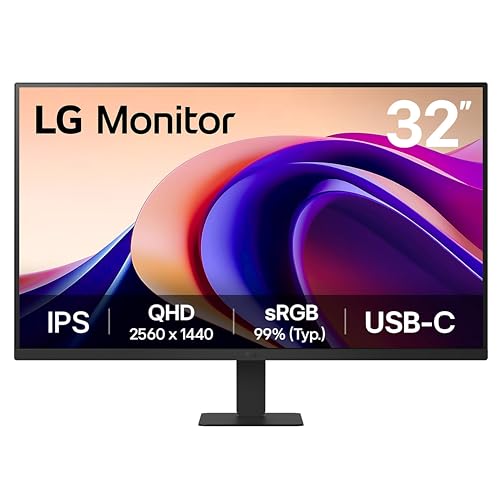
- Best for Eye Comfort: LG 32U631A-B 32-inch QHD (2560 x 1440) IPS Computer Monitor
- Best for Portrait Rotation: Dell 27 Monitor S2725QS, 4K UHD IPS
- Best Premium: BenQ RD320UA 32″ 4K 3840×2160 Programming Monitor
- Best Budget: ViewSonic VS3225-2K 32 Inch QHD 1440p IPS Computer Monitor
Resolution and Pixel Density — What Actually Matters for Reading Code
Resolution numbers on a listing page (1080p, 1440p, 4K) are useful, but pixel density — how many of those pixels are packed into each inch of screen — is the number that actually determines whether small text looks crisp or slightly fuzzy at your normal sitting distance. A 24″ 1080p monitor and a 32″ 1080p monitor have the same resolution but very different sharpness, because the same pixel count is stretched over more physical inches on the larger screen. This is the main reason 1080p tends to disappoint as a monitor for programming once you go much past 24″ — individual characters and thin punctuation marks like colons and semicolons start to look soft.
1440p and 4K solve this by packing more pixels into the same physical size, which is why most of the picks in this guide sit in that range. A 27″ 1440p panel like the ASUS ProArt PA278QV and a 32″ 4K panel land in a similar pixel-density zone, so either is a reasonable jump up from 1080p depending on how large a screen you want on your desk. If your budget and desk space allow it, going straight to 4K at 27″ to 32″ gives the most headroom for OS-level text scaling and future-proofing, but a well-chosen 1440p monitor for programming is still a meaningful upgrade over 1080p without the higher price tag or the scaling quirks that can show up in older Linux desktop environments at 4K.
Ultrawide, Super-Ultrawide, and Tall 3:2 Panels — Choosing Your Screen Real Estate
Once pixel density is sorted out, the next question is how much screen you actually get to work with, and this is where monitors for programming start to diverge from typical office monitors. A standard 16:9 widescreen panel forces you to either overlap windows or shrink your editor to make room for a terminal, browser, or documentation pane. Three alternative shapes solve this differently, and each has a real trade-off worth understanding before you buy.
Ultrawide panels (21:9, roughly 34″ like the Dell 34 Monitor S3425DW) add enough horizontal space to comfortably split an editor and a browser or terminal side by side without either feeling cramped. Super-ultrawide panels (32:9, around 49″ like the INNOCN 49″ Curved Monitor Ultrawide) go further, effectively replacing a two-monitor setup with one continuous panel — useful if you frequently keep three or more windows visible at once, though the extra width also means a deeper desk footprint and a curve that some people adjust to faster than others. The third option, a taller 3:2 aspect ratio built specifically as a programming monitor, takes the opposite approach: instead of adding width, it adds vertical height so more lines of code are visible before you need to scroll. This is a smaller, more specialized product category with fewer models on the market, but it directly targets the way code files are actually shaped — tall and narrow rather than wide and short.
There’s no single correct choice between these three layouts. A programmer who works mostly in one large file at a time tends to benefit most from the taller 3:2 shape, while someone constantly cross-referencing documentation, a terminal, and a browser tends to get more daily value from ultrawide or super-ultrawide screen real estate. Either direction beats sticking with a single small 16:9 panel for serious daily coding work.
Portrait Orientation and Vertical Monitor Setups
A less obvious but genuinely useful setup among experienced developers is running a secondary monitor rotated 90 degrees into portrait orientation. Code files, log output, stack traces, and long documentation pages are all naturally taller than they are wide, so a vertical monitor for programming can show far more of a single file at once than the same panel in landscape would. It’s a common pairing with a primary landscape monitor for the main editor, with the portrait screen dedicated to reading — a long file, a pull request diff, or reference documentation — without constant scrolling.
The catch is that not every monitor and stand combination supports this. Rotating the panel itself is usually just a matter of physically turning it, but the stand or arm needs VESA mount compatibility and a pivot function, not just tilt and height adjustment, for the rotation to be stable and for the built-in stand to lock cleanly into the vertical position. The Dell 27 Monitor S2725QS is built with pivot support specifically for this kind of use, making it a solid pick if a vertical secondary display is part of your plan. If your existing monitor doesn’t support pivot but you still want a rotation-capable arm, that’s a separate purchase worth researching alongside your monitor rather than assuming any VESA-compatible stand will rotate.
Flicker-Free, Blue Light, and Matte Coatings for Long Coding Sessions
Long, uninterrupted screen sessions make backlight quality and glare control more important than they are for casual computer use. Flicker-free backlights avoid the imperceptible pulsing that some cheaper LED backlights use to control brightness, which can contribute to eye fatigue over several hours even when you can’t consciously see it. Several of the picks here, including the LG 32U631A-B, list flicker-free and reader-mode features specifically aimed at reducing this kind of strain, which is worth prioritizing on any monitor for programming that you expect to sit in front of for most of a workday.
Blue light and reader modes work alongside flicker-free backlights by shifting the color temperature warmer, particularly useful during evening coding sessions when a cooler, bluer screen can interfere with sleep. Matte or anti-glare coatings solve a related but different problem: reflections from overhead lighting, windows, or a bright wall behind you. A glossy panel can look more vibrant in product photos, but for a workstation you’re staring at for hours, a matte finish that cuts glare tends to matter more day to day than slightly punchier colors. Most of the panels in this guide use an anti-glare or matte coating for exactly this reason, since it’s a bigger quality-of-life factor for programming than for occasional media viewing.
Refresh Rate, Panel Type, and Connectivity — What to Deprioritize vs Prioritize
It’s worth addressing directly: refresh rate, one of the most heavily marketed specs on Amazon monitor listings, barely matters for programming. A 60Hz or 75Hz panel handles scrolling through code and switching between windows just fine, and the 144Hz or 240Hz numbers attached to many “gaming” monitors that show up when you search for a monitor for programming are inherited from a completely different use case. Don’t let a high refresh rate push you toward a lower-resolution or lower-quality panel just because the number looks impressive on the spec sheet — pixel density and screen real estate deliver far more day-to-day benefit for coding work.
Panel type is a smaller but still relevant factor. IPS panels generally hold color and contrast more consistently at an angle, which matters if you frequently glance at your screen from an off-center position or share your screen during pair programming. VA panels, more common on some ultrawide and curved monitors, trade a bit of that off-angle consistency for deeper contrast, which is a reasonable trade for a wide curved panel you’re sitting directly in front of. Finally, check connectivity against your actual setup: USB-C with power delivery lets a single cable both drive the display and charge a laptop, which is a real convenience if you dock and undock a laptop daily, while multiple DisplayPort and HDMI inputs matter if you switch between a desktop and a laptop on the same programming monitor throughout the week.
How We Evaluated These Monitors for Programming
Every monitor in this guide was sourced from current Amazon listing data and checked against its stated resolution, panel type, aspect ratio, and eye-comfort features at the time of research. We prioritized listings that explicitly support at least one of the core criteria programmers care about — high pixel density in the 1440p to 4K range, ultrawide or tall-format screen real estate, anti-glare or matte coating, and flicker-free or reader-mode backlighting — over listings that lean on refresh rate or gaming branding without addressing those needs. We compared 8 real, currently listed monitors across price points, from budget QHD panels to purpose-built programming monitors with premium pricing, and we did not invent model names, merge two listings together, or assume specs beyond what each product page stated. Amazon pricing and availability change regularly, so it’s worth confirming current specs before buying.
Common Mistakes When Choosing a Monitor for Programming
- Chasing refresh rate over pixel density. A 144Hz gaming monitor at 1080p will render code text less sharply than a 60Hz 1440p panel — refresh rate does almost nothing for a mostly static coding workload.
- Buying 4K at a small screen size without checking OS scaling. A 24″ 4K monitor for programming can force scaling settings that some Linux distributions and older applications handle inconsistently; 27″ and up is generally smoother.
- Assuming any VESA-compatible stand supports portrait rotation. Tilt and height adjustment are not the same as pivot — confirm rotation support specifically if a vertical secondary monitor is part of your plan.
- Ignoring glare until after setup. A glossy panel that looked fine in a showroom can be a daily annoyance once it’s facing a window or overhead light at your actual desk.
- Going straight to the widest ultrawide without measuring desk depth. A 49″ super-ultrawide monitor for programming needs real desk space and viewing distance to work comfortably — measure before you buy rather than after.
Buying Checklist
- Prioritize pixel density (1440p or 4K at 27″ to 32″) over resolution number alone or refresh rate.
- Decide between ultrawide, super-ultrawide, or a taller 3:2 layout based on whether you multitask across windows or work mostly in one large file.
- Confirm pivot/VESA rotation support specifically if you plan to run a vertical secondary monitor for reading code or documentation.
- Look for flicker-free backlighting and a reader or low-blue-light mode for long daily sessions.
- Choose a matte or anti-glare coating if your desk faces a window or bright overhead lighting.
- Check panel type (IPS for consistent off-angle color, VA for deeper contrast on curved ultrawides).
- Match connectivity to your actual workflow — USB-C power delivery for single-cable laptop docking, multiple inputs if you switch between machines.
- Measure your desk depth before buying an ultrawide or super-ultrawide monitor for programming to make sure it actually fits your viewing distance.
Complementary Setup Changes
A sharper, better-shaped monitor solves the reading and screen-space side of a programming setup, but the rest of your desk still affects how long you can comfortably work. Our guide to ergonomic keyboards for programmers covers split layouts and programmable macros that pair naturally with a new monitor for programming, especially if you’re rebuilding your whole setup at once. If desk size or cable management is holding back a bigger or ultrawide display, our guide to desks for programmers looks at surface depth and weight capacity for multi-monitor setups specifically. And if glare is a bigger issue than your monitor’s built-in coating can fully solve, our guide to anti-glare screen filters covers an add-on option worth comparing before you replace the monitor itself.
FAQ
Is 1440p or 4K better for a programming monitor?
Both are meaningful upgrades over 1080p for reading code. 1440p at 27″ delivers noticeably sharper text than 1080p at a lower price than most 4K options, while 4K at 27″ to 32″ gives more headroom for scaling and fine detail if your budget allows it. Neither is objectively wrong — 4K is the safer long-term choice if you can afford it, and a good 1440p monitor for programming is still a real improvement if you can’t.
Should I get an ultrawide monitor or stick with dual monitors for coding?
An ultrawide monitor for programming removes the bezel gap between two screens and is easier to arrange into custom window splits, which many developers prefer. Dual monitors are still a reasonable choice if you want to physically separate certain windows (like keeping a video call or reference material fully independent from your coding windows) or if desk depth limits how large a single panel you can comfortably use.
Is a vertical or portrait monitor actually useful for programming?
Yes, for a specific use case: reading long files, logs, or documentation where more visible vertical lines matters more than horizontal width. It’s typically paired with a landscape primary monitor rather than used as your only display, and it requires a stand or arm with pivot support rather than just tilt and height adjustment.
Does refresh rate matter when choosing a monitor for programming?
Not much. 60Hz or 75Hz is fine for the mostly static, text-heavy workload of reading and writing code. Higher refresh rates like 144Hz mainly benefit fast motion in games and don’t meaningfully improve the experience of coding, so it shouldn’t be a deciding factor over pixel density or screen real estate.
Is a matte or anti-glare coating worth choosing over a glossy screen?
For most programmers, yes. A matte coating reduces reflections from overhead lighting and windows during long sessions, which matters more day to day than the slightly more vibrant colors a glossy panel can offer. This trade-off is one of the more consistently overlooked specs when people shop for a monitor for programming.
What monitor size is the sweet spot for programming?
27″ to 32″ covers most setups well, balancing enough screen real estate with a pixel density that stays sharp at 1440p or 4K without needing an unusually deep desk. Anything larger, including ultrawide and super-ultrawide options, is worth it specifically if you regularly keep multiple windows visible side by side rather than working in a single maximized editor.