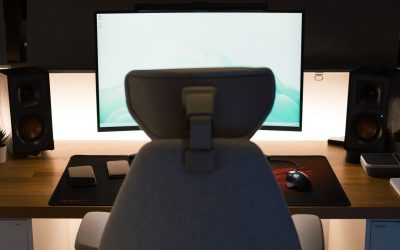
Trading a sprawling dual-monitor rig for a smaller, simpler desk setup sounds like a downgrade until you actually do it right. Whether you are moving to a tiny apartment, switching to hybrid work, or just tired of cable clutter, downsizing your monitor and laptop setup does not have to mean losing productivity. With the right hardware choices and a bit of planning, you can shrink your footprint while keeping (or even improving) your workflow.

Why Downsize Your Monitor and Laptop Setup?
Not every downsizing decision is about saving space. Some people simplify because they travel often, others because a smaller desk footprint reduces visual clutter and helps them focus. Whatever the reason, the goal is the same: keep the functionality you rely on daily while cutting down on unnecessary screens, cables, and desk real estate.
Before you start unplugging monitors, it helps to identify exactly what you use your current setup for. Do you need dual monitors for side-by-side document comparison, or is that mostly habit? Are you running resource-heavy applications that benefit from extra screen real estate, or mostly browsing, emailing, and writing? Answering these questions honestly will guide every decision below.
What You’ll Need
- A laptop with sufficient ports (or a dock/hub to add them)
- One well-chosen external monitor (optional, but recommended for most people)
- A compact monitor riser or laptop stand
- A single, reliable USB-C hub or docking station
- Cable management clips or a sleeve to keep cords tidy
Step 1: Audit Your Current Workflow
Spend a few days paying attention to how you actually use your screens. Note which applications you keep open side by side, whether you use a second monitor mostly for reference material, video calls, or spreadsheets, and how often you actually need two full-size displays at once. Many people find they use one primary monitor 90 percent of the time and the second screen mainly for background windows like chat or email.
Step 2: Choose One Strong Monitor Instead of Two Small Ones
Instead of running two mid-size monitors, consider consolidating to a single larger, high-resolution display. A well-chosen 27 inch monitor gives you enough horizontal space to snap two windows side by side using your operating system’s built-in window-splitting tools, effectively replicating a dual-monitor workflow on one screen. This cuts down on desk space, cable count, and visual clutter while preserving multitasking ability.
When shopping, prioritize resolution over sheer size. A crisp 1440p or 4K panel lets you fit more content on screen without shrinking text to an unreadable size, which matters a lot once you are relying on a single display for everything.
Step 3: Simplify Your Connections with a Single Hub
One of the biggest sources of desk clutter is not the monitor itself, it is the tangle of cables and adapters feeding it. Rather than juggling separate cables for video, power, ethernet, and peripherals, invest in a quality USB C hub that consolidates everything into a single cable running to your laptop. Many modern hubs support video output, fast charging, and multiple USB ports at once, which means you can dock and undock your laptop in seconds without hunting for the right cable each time.
Look for a hub that matches your monitor’s video input (HDMI or DisplayPort) and supports enough wattage to charge your laptop through the same connection. This single upgrade often does more to reduce visual clutter than removing an entire monitor.
Step 4: Reclaim Desk Space with a Riser
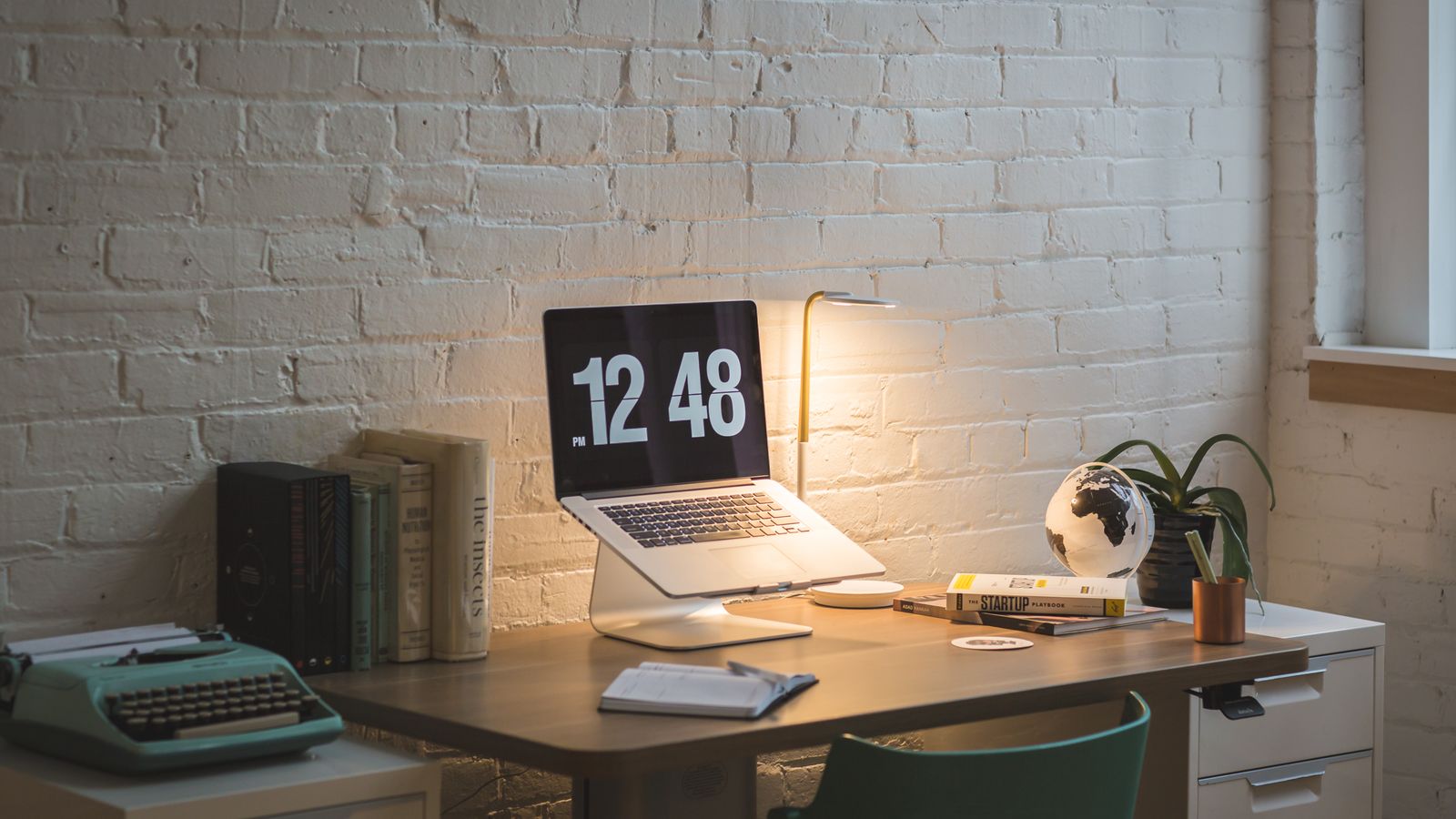
A smaller setup only feels smaller if your desk actually looks organized. Elevating your remaining monitor with one of the best monitor risers not only improves your posture by bringing the screen closer to eye level, it also frees up the desk surface underneath for a keyboard, notebook, or laptop tray. Many risers include built-in storage or drawers, which is especially useful when you are consolidating gear from a larger setup into a smaller footprint.
Step 5: Position Your Laptop as a Second Display (When Needed)
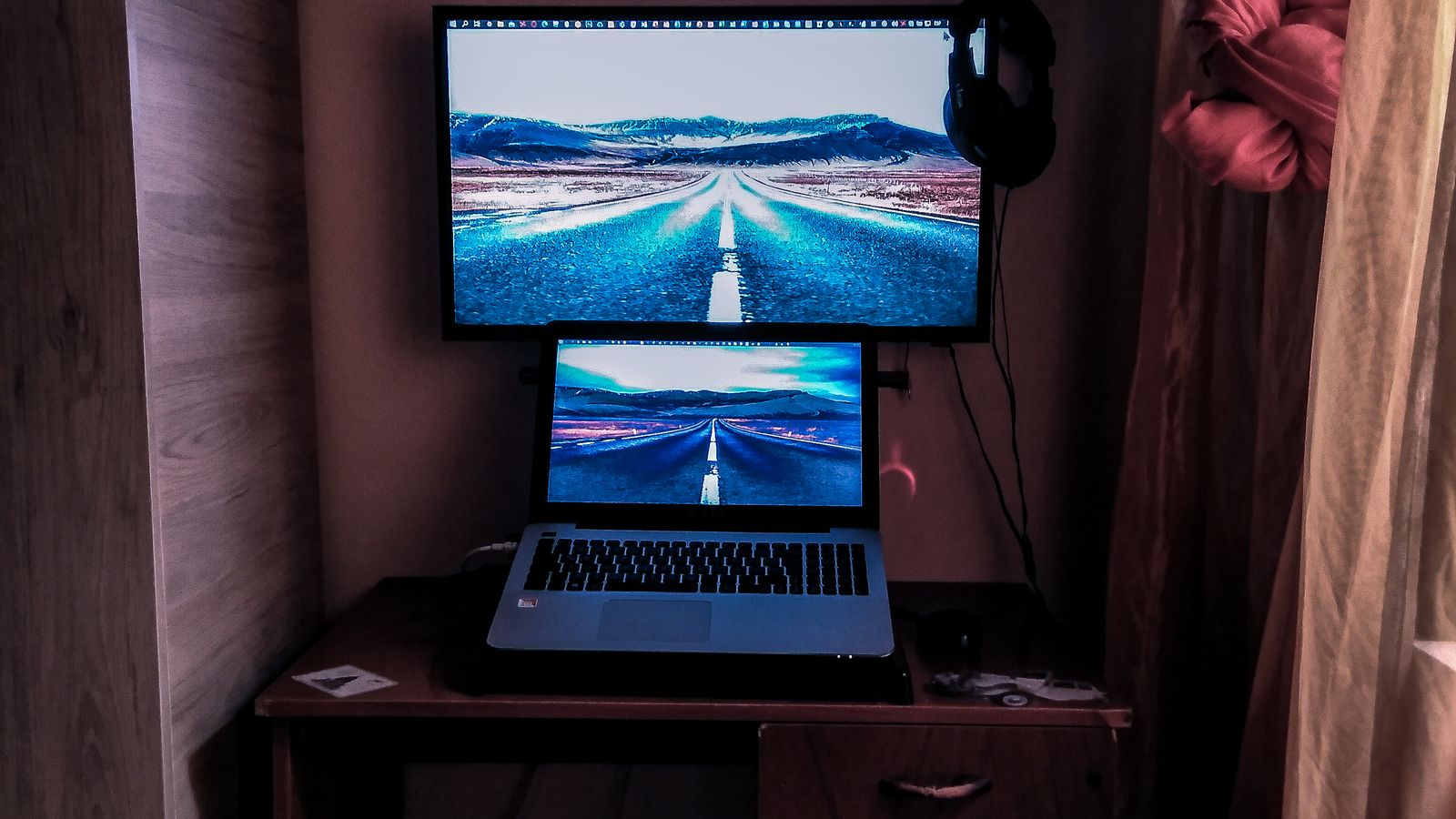
You do not have to fully retire your laptop screen. Using a laptop stand alongside your external monitor lets you angle the laptop display slightly to one side, turning it into a secondary screen for reference material, chat apps, or music controls, without dedicating a full second monitor to the task. This hybrid approach captures most of the benefit of a dual-monitor setup while using less desk space and fewer cables than two full-size external displays.
Step 6: Clean Up Cable Management
Once your hardware is consolidated, spend ten minutes on cable management. Route your USB-C hub cable, power cable, and any peripheral cords along the back or underside of the desk using clips or a sleeve. A tidy setup reinforces the feeling that you have simplified, not just shrunk, your workspace, and it makes future adjustments (like swapping a keyboard or repositioning your monitor) much easier.
Safety and Ergonomics Notes
Downsizing should never come at the cost of ergonomics. Keep your monitor’s top edge at or slightly below eye level, and make sure your laptop, if used as a secondary screen, is not forcing you to tilt your neck for long periods. If you rely heavily on the laptop keyboard after downsizing, consider adding an external keyboard and mouse so your wrists stay in a neutral position rather than hunching over a laptop base all day.
Common Mistakes to Avoid
- Downsizing too aggressively at once. Remove one piece of hardware at a time and live with the change for a few days before deciding whether to remove more.
- Choosing a cheap hub that can’t handle video and charging simultaneously. This often leads to dropped connections or slow charging, undoing the convenience you were after.
- Ignoring monitor height. A smaller setup with a poorly positioned screen can hurt your neck and shoulders more than a larger, well-arranged one.
- Forgetting about resolution. Going from two monitors to one without bumping up resolution can leave you cramped for screen space.
Signs It’s Time to Downsize Further (or Add Back a Screen)
After a few weeks with your simplified setup, check in with yourself. If you find you are constantly alt-tabbing between windows that used to live comfortably on a second monitor, it may be worth reconsidering a compact secondary display. On the other hand, if you barely notice the missing screen, you have found the right balance, and you can look for further ways to simplify, such as switching to a smaller monitor riser or trimming down your hub to only the ports you actually use.
FAQ
Do I really need an external monitor if I have a laptop?
Not necessarily. Many people work comfortably on a laptop screen alone with a stand to raise it to eye level. An external monitor helps most when you regularly multitask across several windows or need a larger canvas for detailed work like spreadsheets or design.
Will a single large monitor really replace two smaller ones?
For most everyday tasks, yes. A high-resolution 27 inch display gives you enough width to snap two application windows side by side, which covers the majority of use cases that previously required two separate monitors.
What’s the easiest first step if I’m not ready to remove a monitor yet?
Start with cable management and a USB-C hub. Consolidating your connections often makes a two-monitor setup feel far less cluttered without removing any hardware at all.
Is a monitor riser really necessary?
It is one of the most effective low-cost upgrades for both ergonomics and desk organization, since it frees up surface space while improving your viewing angle.
How do I know if my laptop can handle a single external monitor plus charging through one cable?
Check your laptop’s USB-C port specifications for DisplayPort Alt Mode and Power Delivery support. If both are supported, a compatible USB-C hub can handle video, data, and charging simultaneously.