A messy tangle of charging cables and a wobbly makeup mirror propped against your monitor can turn a small desk into a daily source of frustration. The good news is that you don’t need a full workspace overhaul to fix it — pairing a desk charging dock with a desk mirror clip solves two of the most common desktop annoyances at once: scattered wires and an awkward personal-grooming or video-call setup. This guide walks you through exactly how to combine these two accessories into one clean, functional desk cable management system, step by step.
Why Combine a Charging Dock and a Mirror Clip?
On the surface, a charging dock and a mirror clip seem unrelated. But both accessories share the same underlying goal: reclaiming desk surface area and reducing visual clutter. A charging dock consolidates multiple charging cables — phone, earbuds, smartwatch — into one compact station instead of loose cords running across your desk. A mirror clip, meanwhile, attaches directly to your monitor or desk divider, eliminating the need for a freestanding mirror stand that eats up real estate and adds yet another cable-crossing obstacle. Used together, they let you keep your desktop almost entirely clear, with cables tucked away and your mirror mounted vertically instead of sitting flat on the surface.
What You’ll Need
- A multi-device desk charging dock compatible with your phone, earbuds case, and/or smartwatch
- A desk mirror clip sized to fit your monitor edge or cubicle divider thickness
- Cable ties or reusable velcro straps
- Adhesive cable clips or a cable raceway/sleeve
- A short power strip or surge protector with USB ports (optional but recommended)
- A microfiber cloth for cleaning surfaces before mounting
If you haven’t picked out your accessories yet, browsing a curated list of Desk Charging Docks and desk mirror clips is a good starting point — look for a dock with cable channels built into the base and a mirror clip with adjustable tension so it won’t slip off thinner monitor bezels.
Step-by-Step: Setting Up Your Cable Management System
- Clear the desk completely. Remove everything from your workspace, including existing cables, so you can see the actual desk surface and plan placement without guessing around clutter.
- Map your power source. Identify where your outlet or power strip sits relative to the desk. This determines which side of the desk your charging dock should live on to minimize cable length and crossing paths.
- Position the charging dock. Place the dock near the back corner of the desk, ideally against a wall or divider, rather than in the center where it will interfere with typing space. Many docks include a weighted or non-slip base — make sure it sits flat and won’t shift when you plug or unplug devices.
- Route the charging cables. Run the dock’s cables along the back edge of the desk using adhesive clips spaced every few inches. Avoid letting cables droop over the front edge or cross your keyboard area.
- Bundle excess cable length. Use a cable tie or velcro strap to gather any slack instead of letting it hang loose behind the desk. A cable sleeve works well if you have three or more cords running together.
- Attach the mirror clip. Clip the desk mirror clip onto the side or top edge of your monitor, or onto a cubicle divider if you have one. Test the tension by gently tugging the mirror to confirm it won’t slide down during the day.
- Adjust the mirror angle. Most clip-on mirrors tilt or rotate slightly. Set the angle so you can quickly check your appearance before a video call without needing to lean forward or move your monitor.
- Do a final cable sweep. Walk around the desk and check for any remaining loose cords, especially near your feet or chair area, and secure them with an extra clip if needed.
- Test the full setup. Plug in and charge each device on the dock, and confirm the mirror stays stable when you bump the desk lightly — a common real-world scenario in shared or compact workspaces.
Where to Mount Each Accessory for Maximum Space Savings
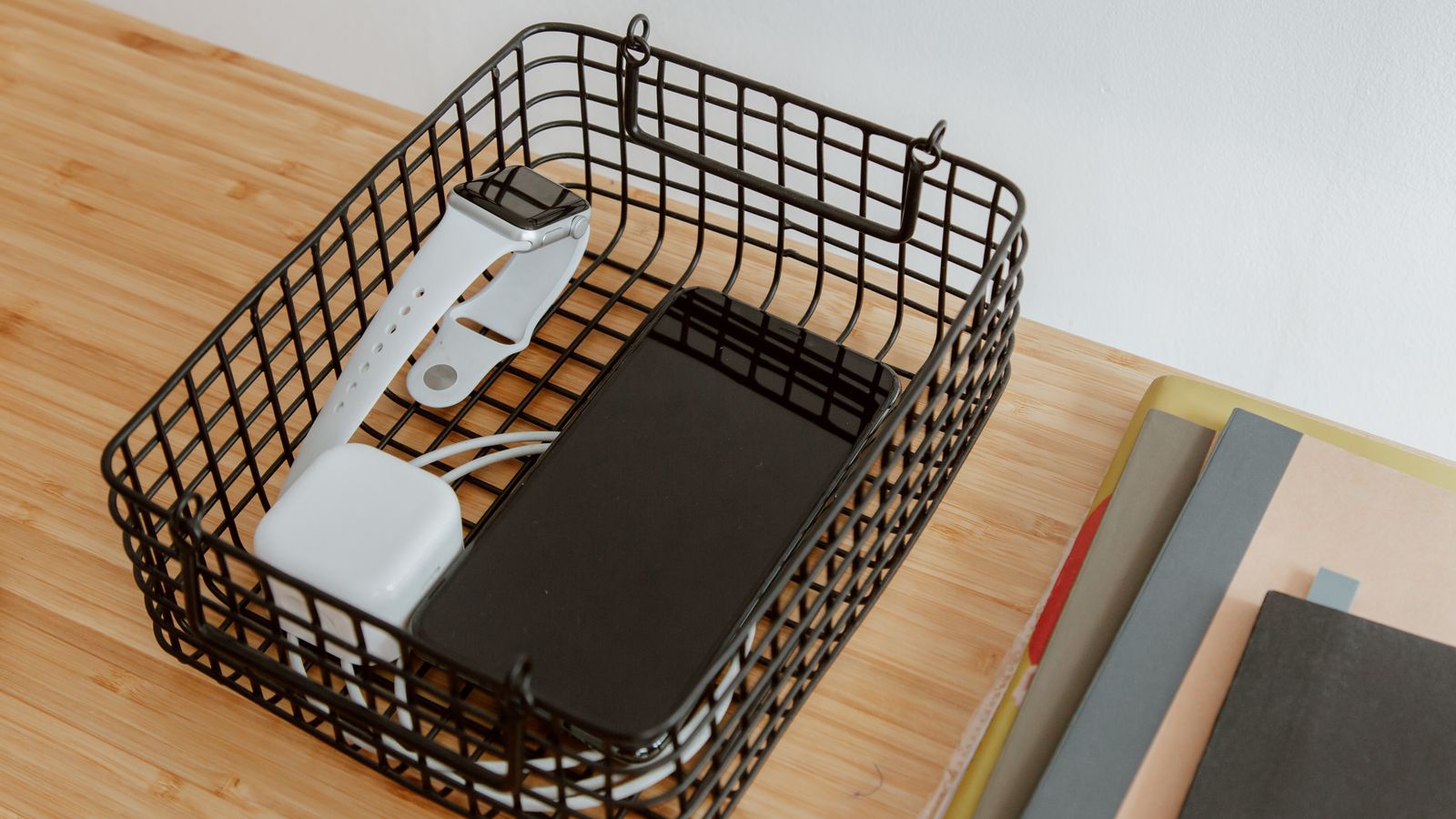
Placement matters as much as the accessories themselves. For the charging dock, corners and back edges are almost always better than the center of the desk — you free up the primary work surface for a keyboard, notebook, or laptop. For the mirror clip, monitor-mounted placement tends to work best in home offices, while divider-mounted placement is more practical in cubicle or shared office environments. If your desk includes a hutch or shelf, consider mounting the mirror clip there instead, which keeps it out of the way of your monitor’s viewing angle entirely. Pairing this setup with a few cubicle hooks gives you extra vertical storage for headphones, bags, or jackets, further reducing what sits on the desk itself.
Common Mistakes to Avoid
- Overloading one power strip. Charging docks with multiple device slots can draw more current than a single outlet is rated for — check your power strip’s wattage limit before plugging everything in.
- Mounting the mirror clip on a bezel that’s too thin. Ultra-thin monitor edges can cause lightweight clips to slip. Test the fit before loading it with a heavier mirror.
- Using tape instead of proper cable clips. Tape loses adhesion over time and leaves residue. Reusable adhesive clips or a cable raceway hold up much better long-term.
- Ignoring cable length. Cables that are too long create slack that bunches up under the desk. Choose shorter cables or coil the excess neatly instead of leaving it loose.
- Placing the dock too close to the monitor’s air vents. Some monitors and laptops vent heat from the sides — keep charging equipment a few inches clear to avoid heat buildup.
Maintaining a Clean Setup Over Time
Cable management isn’t a one-time task — cords shift, new devices get added, and clips loosen with regular use. Do a quick 5-minute check every couple of weeks: re-secure any drifting cables, wipe down the mirror clip’s contact points, and confirm the charging dock’s connectors aren’t showing wear. If you add a new device to your routine, such as a wireless earbud case or a second phone, plan its cable path before simply draping the cord across the desk — this keeps the system from slowly reverting to clutter.
Frequently Asked Questions
Can a desk mirror clip damage my monitor bezel?
Most clips use rubberized or foam-padded grips designed not to scratch plastic or metal bezels. Still, it’s worth checking clip material and tension before mounting on a premium or curved-edge monitor.
How many devices can a typical desk charging dock handle?
Most compact docks handle two to four devices at once — commonly a phone, a smartwatch, and an earbuds case. Larger multi-port docks can support more, but check the total wattage output against your devices’ charging needs.
Do I need a power strip, or can I plug the dock directly into the wall?
A direct wall connection works fine if your outlet is close to the desk. A short USB-equipped power strip is more convenient if your desk sits away from the wall or you want to charge additional accessories nearby.
Will a clip-on mirror stay steady on a standing desk that moves?
Height-adjustable desks can introduce slight vibration when raising or lowering. Choosing a mirror clip with strong spring tension, and avoiding placement right at the desk’s moving joint, keeps it steady through height changes.
What’s the easiest way to hide cables that run to the floor?
A cable sleeve or a floor-to-desk raceway channel keeps vertical cable runs bundled and out of sight, especially useful if your outlet is on the floor rather than a wall-mounted strip.
With the charging dock anchored in one corner and the mirror clip mounted directly on your monitor or divider, your desk surface stays clear for actual work while still keeping your devices charged and a mirror within easy reach. It’s a small setup change, but one that noticeably reduces the daily friction of a cluttered workspace.