Setting up an Apple Mac Mini delivers impressive desktop performance in a compact footprint, but choosing the right external screen determines your everyday computing experience. The macOS operating system renders typography and graphic elements with specialized display scaling rules, making resolution and pixel density paramount for crisp visual output.
In September 2026, workstation users increasingly demand expansive ultrawide formats that eliminate clumsy dual-monitor bezels and simplify multitasking. Our review of 2 Best Monitors for Apple Mac Mini highlights screens from leading brands like INNOCN that combine high visual fidelity with seamless single-cable connectivity.
Many shoppers run into frustrating issues like fuzzy text scaling, limited desk space, and cable clutter when pairing third-party displays with Apple silicon. Pairing your display with functional desk accessories like standing desk cable trays ensures your high-performance workspace remains clean, organized, and ergonomically sound.

macOS Display Scaling and Pixel Density
Apple macOS handles screen scaling differently than Microsoft Windows. The operating system is mathematically optimized for native Retina displays targeting roughly 218 pixels per inch, or standard non-Retina displays near 110 pixels per inch. When you connect a monitor that falls in an awkward middle ground, macOS must render the desktop at a higher virtual resolution and downsample it, which can slightly increase system graphics overhead.
A 40-inch 5K2K display with a resolution of 5120 by 2160 delivers approximately 140 pixels per inch. This density provides exceptionally sharp typography and clean window elements when running in native macOS scaled modes. Graphic artists, coders, and writers benefit immediately from this higher pixel density because fine details remain crisp without blurry character edges.
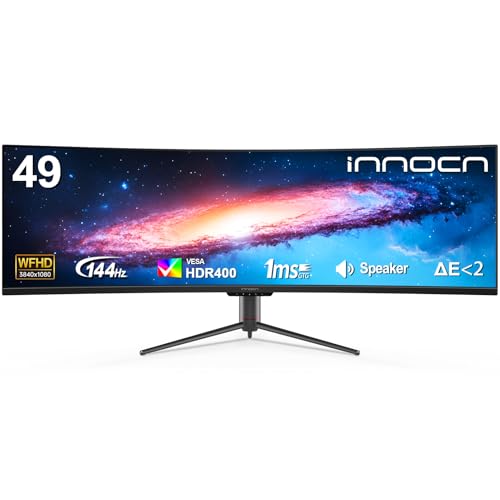
Super ultrawide 49-inch screens running at 3840 by 1080 resolution offer a lower density of roughly 82 pixels per inch. While fine text will not have the surgical sharpness of a 5K screen, this layout provides a massive horizontal field of view that shines for timeline video editing, audio mixing, and multi-window monitoring. The trade-off comes down to choosing between extreme physical screen width and ultimate pixel clarity.
A practical rule of thumb is to consider your average viewing distance from the screen. If your eyes sit within 20 to 25 inches of the glass, the higher pixel density of a 5K display provides a noticeable boost in comfort. If your desk is deep and you sit further back, a broader super ultrawide panel offers tremendous productivity value without distracting pixelation.
Aspect Ratio and Horizontal Screen Real Estate
The aspect ratio of your monitor fundamentally shapes how you organize open application windows across the desktop. Traditional 16:9 displays often feel restrictive when you want to compare multiple browser windows, reference PDFs, and communication channels simultaneously. Modern ultrawide aspect ratios expand horizontal canvas space to streamline complex workflows.
A 21:9 aspect ratio provides an expansive panoramic field that accommodates three standard-width documents side by side without overlapping. This format matches cinematic video timelines perfectly and gives creative professionals uninterrupted canvas width. It offers a balanced compromise between extensive screen space and manageable physical desk dimensions.
A 32:9 super ultrawide format is the equivalent of placing two standard 27-inch 16:9 monitors side by side without a dividing bezel. This massive horizontal canvas allows financial analysts, software developers, and project managers to view extensive data sets and code structures simultaneously. It replaces complex multi-monitor cable trees with a single elegant screen.
Managing the physical footprint of large ultrawide panels requires sturdy mounting hardware to keep desk surfaces uncluttered. Utilizing a dedicated ultrawide monitor arm helps you position large panels at the optimal ergonomic height while freeing up valuable surface space beneath the display.
USB-C and Thunderbolt Connectivity
Apple Mac Mini desktops rely heavily on USB-C and Thunderbolt ports for external video and high-speed data transmission. Choosing a monitor equipped with a fully featured USB Type-C port simplifies your workstation cabling significantly. A single cable can carry high-resolution video signals, audio data, and peripheral connectivity directly between the Mac Mini and the monitor.
Integrated USB hubs built into modern monitors act as convenient desktop docking stations. When you plug USB-A and USB-B accessories like external backup drives, mechanical keyboards, audio interfaces, and webcams into the monitor, your Mac Mini communicates with all of them through the primary display connection. This expands peripheral flexibility without requiring extra external dongles.
While the Mac Mini is a desktop computer that draws power from an internal supply, USB-C monitors that feature 65W or higher power delivery provide excellent versatility for hybrid workflows. If you occasionally dock a work MacBook or personal laptop at the same desk, the single USB-C cable will transmit display data while rapidly charging your portable machine.
Always verify that you are using high-bandwidth USB-C or DisplayPort cables capable of handling your target resolution and refresh rate. Standard charging cables lack the high-speed data lanes required to transmit 4K or 5K video, which can lead to black screens or lower available refresh rates on macOS.
Color Accuracy and Color Gamut Coverage
Apple macOS is engineered around the wide Display P3 color space, which provides significantly richer reds and greens than standard sRGB. Designers, photographers, and video editors working on a Mac Mini require monitors capable of reproducing these wide color palettes accurately. A display with broad color gamut coverage ensures your creative assets translate faithfully across all Apple devices.
Look for monitors advertising high coverage metrics such as 106 percent DCI-P3 and over 100 percent sRGB. In addition to broad color coverage, factory calibration with a Delta E rating of less than 2 ensures that colors rendered on screen match standard reference targets right out of the box without requiring expensive hardware calibration tools.
In-Plane Switching (IPS) panel technology remains the gold standard for color fidelity and viewing angle stability. IPS panels maintain uniform color balance and contrast levels even when viewed from extreme off-center angles. This consistency is crucial on wide displays where the far corners of the screen sit at noticeable angles relative to your eyes.
To maximize visual comfort and color perception in your office, ambient lighting must be balanced to prevent reflections on the screen surface. Incorporating adjustable office floor lamps with warm, diffused lighting creates a soothing work environment that minimizes eye fatigue during color-critical editing sessions.
Refresh Rates and Motion Smoothness
The refresh rate of a monitor indicates how many times per second the display updates the image. While standard office monitors operate at 60Hz, higher refresh rates such as 100Hz or 144Hz make system animations, window dragging, and cursor movement feel remarkably fluid on macOS. This smoothness creates a much more responsive user experience throughout the workday.
Variable refresh rate technologies like AMD FreeSync and Adaptive-Sync synchronize the screen refresh cycle directly with the graphical output of the Mac Mini. This dynamic synchronization prevents visual screen tearing and stuttering during high-speed video playback and casual gaming. It ensures smooth frame delivery across varying desktop workloads.
When selecting a high refresh rate monitor, ensure your Mac Mini hardware supports your desired resolution at that speed. While modern M-series Mac Mini computers handle high refresh rates over HDMI and USB-C DisplayPort easily, using certified high-speed cables prevents unexpected signal drops and resolution limits.
For users who spend hours scrolling through long code files, dense spreadsheets, and document archives, higher refresh rates noticeably reduce eye strain. The continuous visual fluidity helps your eyes track moving text without experiencing motion blur or jitter.
Panel Curvature and Viewing Ergonomics
When using displays wider than 34 inches, screen curvature plays a critical role in visual ergonomics. Curvature ratings like 1800R gently wrap the display edges inward toward the viewer. This curvature maintains an equal focal distance between your eyes and every part of the screen, reducing the need to constantly turn your head.
A gentle curve also minimizes color and contrast distortion at the far edges of super ultrawide panels. By angling the perimeter pixels directly toward your line of sight, the display ensures consistent brightness and legibility across your entire peripheral vision field.
Stand adjustability is another essential ergonomic consideration for any desktop setup. A quality monitor stand should offer smooth height, tilt, and swivel adjustments to position the top third of the screen at eye level. Proper positioning prevents neck strain, shoulder tension, and poor posture during marathon work days.
If your desktop setup includes multiple peripherals and power bricks, integrating clean routing hardware is vital. Installing desk grommet outlets allows you to route high-voltage power and charging cables cleanly through your desk surface without creating tangled cable nests.
Brightness, Contrast, and HDR Performance
Ambient lighting conditions in your home office or workspace dictate the necessary brightness level of your display. A monitor delivering a peak brightness of 350 nits or higher provides clear visibility even in sunlit rooms with large windows. Anti-glare matte coatings further reduce distracting reflections from overhead lights.
High Dynamic Range (HDR) capability, such as VESA DisplayHDR 400 certification, expands the contrast ratio between dark shadows and bright specular highlights. When enabled on macOS, HDR produces richer, more vibrant visual media and provides greater detail when reviewing video footage or editing high-contrast images.
Standard IPS contrast ratios typically range from 1000:1 to 1200:1, providing solid black levels and clear differentiation between subtle dark gray tones. Good contrast prevents text from looking washed out against white backgrounds and makes reading fine documents much easier on the eyes.
Maintaining a comfortable acoustic environment around your workstation is just as important as visual clarity. If your office suffers from hollow echoes and hard wall reflections, installing decorative office wall panels creates a quiet, focused workspace that complements your visual setup.
Multi-Input Management and Screen Splitting
Many professionals use an Apple Mac Mini alongside a secondary machine, such as a corporate Windows laptop or a dedicated render node. Monitors featuring Picture-by-Picture (PBP) and Picture-in-Picture (PIP) allow you to display video feeds from two separate computers on the screen simultaneously. This feature effectively divides your single wide display into two distinct virtual screens.
On super ultrawide 32:9 and 21:9 monitors, Picture-by-Picture provides an uninterrupted dual-input workstation without requiring a secondary physical display. You can monitor corporate communication apps on one half of the screen while editing creative assets on your Mac Mini on the other half.
Built-in KVM switch functionality takes multi-computer management a step further by sharing a single keyboard and mouse set between both connected computers. This capability completely eliminates the clutter of multiple input devices, streamlining your desk layout into a single, cohesive command center.
Before purchasing, check the on-screen display menu options to verify how easily you can switch between input sources and toggle split-screen modes. Intuitive physical joystick controls or dedicated software utilities make daily input toggling fast and effortless.
Integrated Audio and Hardware Design
While the Apple Mac Mini includes a small internal speaker, its sound output is basic and best suited for simple system alerts. Monitors equipped with integrated stereo speakers provide convenient audio output for video conferencing, web browsing, and podcasts without requiring dedicated desktop speakers that take up valuable surface space.
Ultra-narrow bezels create an immersive visual experience and give modern monitors a sleek, minimalist aesthetic that complements Apple hardware design. Slim profile housings and sturdy metal stands ensure the screen sits securely on your desk without wobbling during heavy typing.
Integrated eye-care technologies like flicker-free backlighting and hardware low-blue-light filters protect your eyes from long-term strain. These features reduce visual fatigue during extended coding or writing sessions, allowing you to maintain peak productivity throughout the day.
| Monitor Feature | 40-Inch 5K2K Display | 49-Inch Super Ultrawide | Standard 27-Inch 4K |
|---|---|---|---|
| Aspect Ratio | 21:9 Ultrawide | 32:9 Super Ultrawide | 16:9 Standard |
| Native Resolution | 5120 x 2160 | 3840 x 1080 | 3840 x 2160 |
| Pixel Density | ~140 PPI (Very Sharp) | ~82 PPI (Standard) | ~163 PPI (Retina-like) |
| Target Workload | Design, Code, 4K Video | Multitasking, Timelines | General Office, Photo |
| Horizontal Space | Expansive Canvas | Dual-Screen Equivalent | Standard Window Width |
| macOS Scaling | Sharp at 1440p / 1620p UI | Crisp at 1080p Native | Crisp at 1080p / 1440p UI |
Why You Should Trust Us
Our review team approaches hardware analysis through comprehensive, data-driven evaluation of technical specifications, display panel technologies, and macOS integration standards. We investigate pixel densities, color gamut coverages, port bandwidths, and ergonomics to ensure our recommendations solve real-world productivity challenges for Mac Mini owners.
We do not accept sponsored placements, paid manufacturer rankings, or promotional considerations that could compromise our editorial neutrality. Every monitor featured in this guide is shortlisted based strictly on verified performance metrics, user feedback trends, build quality, and connectivity versatility.
As Apple silicon updates and macOS revisions change external display handling, our team continually updates our recommendations to maintain high relevance. For more workstation design strategies, explore our comprehensive collection of desk setup tips in the guides category.
Final Thoughts
Pairing your Apple Mac Mini with the right external display transforms a compact desktop into a high-performance creative workstation. By prioritizing pixel density, color accuracy, and single-cable connectivity, you eliminate workflow bottlenecks and enjoy a clean, clutter-free desk setup.
For creative professionals, software engineers, and editors who prioritize exceptional visual clarity and broad color reproduction, the INNOCN 40 Inch 5K 5120 x 2160p Ultrawide Monitor is our top overall recommendation. Its 5K2K resolution, 106 percent DCI-P3 color gamut, factory calibration, and 65W USB-C connectivity provide the ultimate high-definition workspace for macOS.
For project managers, data analysts, and power multitaskers looking to replace dual monitors with a single seamless panoramic panel, the INNOCN 49″ Curved Ultrawide 3840 x 1080P 144Hz is an outstanding productivity powerhouse. Its 32:9 aspect ratio and 144Hz refresh rate deliver expansive screen real estate and fluid visual motion.
Adding thoughtful office decor elements like office area rugs alongside your new display setup enhances acoustic comfort and visual warmth, creating an inspiring environment where your Apple Mac Mini workstation can truly thrive.
Frequently Asked Questions
What makes a monitor ideal for an Apple Mac Mini in 2026?
An ideal display for the Apple Mac Mini combines high pixel density for sharp text rendering with robust USB-C connectivity. Accurate color coverage matching the Display P3 standard and ergonomic adjustability ensure a productive, fatigue-free workstation.
How does macOS display scaling work on ultrawide monitors?
macOS renders screen interfaces at high virtual resolutions before downsampling them to fit the display panel. On 5K2K and high-density ultrawide screens, this process produces razor-sharp text and perfectly proportioned user interface elements across the broad canvas.
Can I connect an Apple Mac Mini using a single USB-C cable?
Yes, connecting a certified USB-C or Thunderbolt cable between your Mac Mini and a compatible monitor carries video, audio, and data signals simultaneously. This connection also activates the USB hub built into the monitor for seamless peripheral access.
Is a 5K2K ultrawide monitor better than a dual 4K setup for Mac Mini?
A 5K2K ultrawide monitor provides a continuous visual canvas without a center bezel dividing your workspace. It uses fewer video ports on your Mac Mini, requires fewer desktop cables, and delivers a cleaner aesthetic than traditional dual 4K displays.
What refresh rate can an Apple Mac Mini output to external monitors?
Modern Apple Mac Mini computers equipped with M-series processors support high refresh rates up to 144Hz and beyond over Thunderbolt and HDMI connections. Higher refresh rates make cursor tracking, window dragging, and animations exceptionally smooth.
Do I need a monitor with high DCI-P3 color coverage for Mac Mini?
High DCI-P3 color gamut coverage is essential for graphic designers, photographers, and video editors working within Apple color-managed pipelines. Standard office workers will also enjoy richer, more lifelike colors when viewing media on wide gamut displays.
How does a 32:9 super ultrawide display behave on macOS?
macOS treats a 32:9 super ultrawide display as a single seamless ultra-panoramic monitor. You can use window management tools to snap applications across the vast desktop or use Picture-by-Picture to split the screen into two independent video inputs.
Can an Apple Mac Mini drive two external monitors simultaneously?
Yes, modern Apple Mac Mini models can drive up to two external displays simultaneously by utilizing a combination of Thunderbolt USB-C and HDMI ports. This flexibility lets you expand your workspace across multiple panels if needed.
Why does text look blurry on some monitors connected to Mac Mini?
Text blurriness typically occurs when a display has a low pixel density that does not align with macOS font smoothing algorithms. Choosing high-resolution displays like 5K2K panels ensures typography renders crisply without jagged edges.
What is the advantage of an IPS panel over a VA panel for Mac Mini?
IPS panels offer superior color accuracy and much wider viewing angles compared to VA panels. Because ultrawide screens span a large field of view, IPS technology ensures colors and contrast remain uniform across the entire panel.