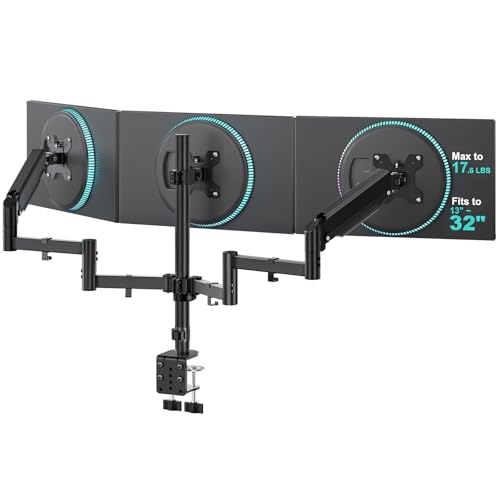
Most monitor arms only do one job: hold the screen where you want it. A growing number now do a second job at the same time, building a small cluster of USB ports directly into the clamp base or the arm body so you’re not reaching under the desk every time you need to plug in a flash drive, a wired mouse, or a phone charger. That’s the appeal of a monitor arm with USB ports — it turns the arm itself into a mini connectivity point sitting right at eye level or elbow height instead of a tangle of cables disappearing behind the tower. This guide breaks down what these built-in ports actually do, where they fall short of a real docking hub, and which real monitor arms with USB ports on Amazon are worth comparing.
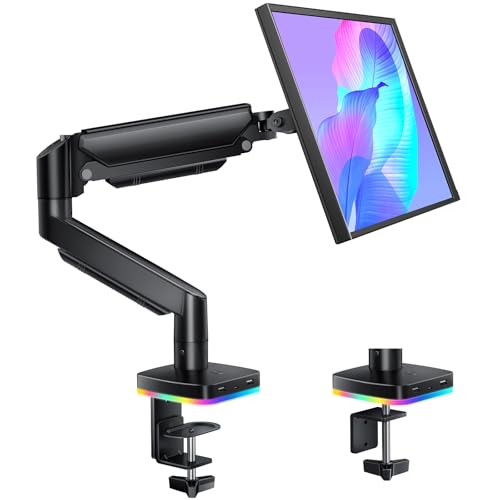
Quick answer: For most single-monitor desks, the RGB Gas Spring Monitor Arm with USB Hub is a solid all-around starting point — it pairs a genuine pressurized gas-spring lift with three built-in USB ports for charging and data transfer, so you get smooth height adjustment and a nearby place to plug in without adding a separate hub to your desk. If your setup needs something different, whether that’s a dual-monitor mount, a triple-arm stand, or a heavier docking-style USB-C hub, the 9 options below cover a range of configurations, and every one of them was checked against its Amazon listing to confirm it genuinely has integrated USB ports rather than just sitting near one.



What Does “USB Ports” on a Monitor Arm Actually Mean?
Not every listing that mentions USB is describing the same thing, and this is where a lot of buyers get tripped up before they even open the box. Some monitor arms with USB ports are simple passthrough hubs — a small cluster of ports wired to a single upstream USB cable that runs back to your computer’s own USB controller. In that setup, the arm isn’t adding any new capability; it’s just extending your existing ports to a more convenient spot at desk height. Other arms use a small powered or data hub with its own internal controller chip, which can split one upstream connection into several working ports more reliably, sometimes with a couple of ports dedicated purely to charging.
Either way, the ports usually sit in one of two places: near the top of the arm close to the monitor, where they’re easy to reach while you’re seated, or built into the clamp base, which keeps them lower but out of the way of the screen itself. A monitor arm with USB ports still needs that upstream cable connected to your PC, laptop, or a wall adapter for power — the built-in hub doesn’t eliminate cable routing, it just relocates where you interact with it, from under the desk to arm height.
Top Picks at a Glance
- Best Overall: RGB Gas Spring Monitor Arm with USB Hub
- Best Budget: RGB Dual Monitor Arm with USB Hub
- Best for Dual Monitors: HUANUO Dual Monitor Stand with USB
- Best from a Trusted Brand: VIVO Premium Aluminum Dual Monitor Desk Mount with USB Ports
- Best for Ultrawide Monitors: monTEK Heavy Duty Ultrawide Monitor Arm with USB
- Best Powered Docking Hub: AVLT Laptop & Monitor Arm Desk Mount with USB-C Dock
- Best for Triple Monitors: Mount-It! Triple Monitor Desk Stand with USB-A & C
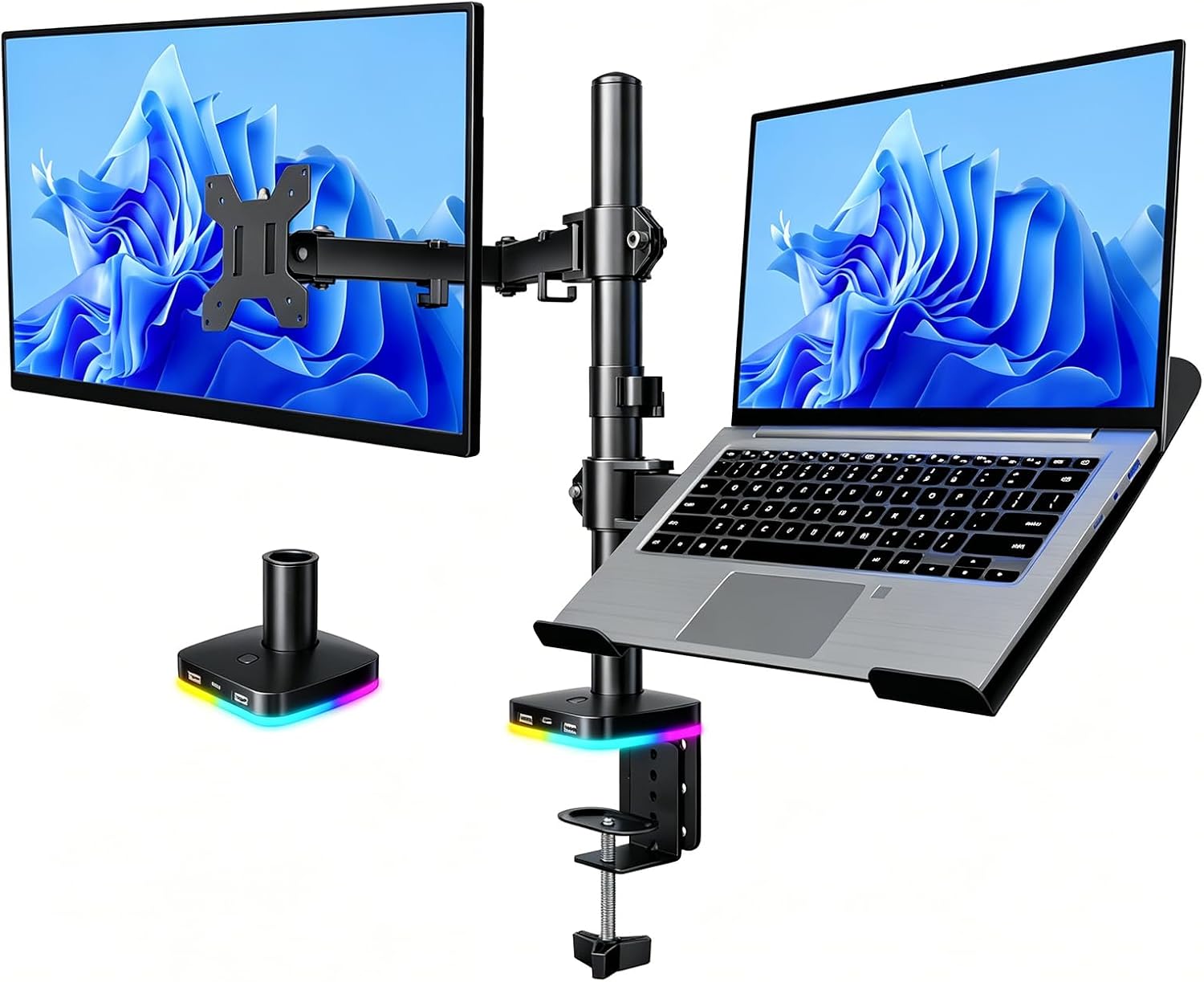
- Best for Laptop + Monitor Combo: Afaloona RGB Monitor & Laptop Stand with USB Hub
- Best USB 3.0 Speed: CTA Single Monitor Arm Mount with Dual USB 3.0 Hub Ports
USB-A vs. USB-C on a Monitor Arm — and Why USB-C Doesn’t Always Mean Video
Port type matters more than it looks on a spec sheet. USB-A is the familiar rectangular connector most keyboards, mice, and flash drives still use, and it’s the most common port you’ll find on a monitor arm with USB ports because it’s cheap to include and works with almost every peripheral without an adapter. USB-C is smaller, reversible, and increasingly common on phones, tablets, and newer laptops, but here’s the catch: a USB-C port on one of these arms is, in the vast majority of cases, wired for data and charging only. It does not carry a video signal the way a laptop’s USB-C DisplayPort Alt Mode port might. If you’re hoping to plug a laptop into the arm’s USB-C port and have it drive your monitor, that’s not what this feature does — you’d need a dedicated docking hub with actual video-out support for that.
There’s also a speed distinction worth checking before you buy. Some monitor arms with USB ports are wired for USB 3.0 speeds, which move files noticeably faster and can push more charging current, while others use older USB 2.0 wiring even when the port shape looks identical. Listings don’t always spell this out clearly, so if fast file transfer matters to you — say, offloading photos from a card reader or an external SSD — it’s worth reading the fine print or product images rather than assuming every USB port on an arm performs the same.
Data Transfer vs. Charging — Know What You’re Actually Getting
Most monitor arms with USB ports advertise “data transfer and charging” together, and on a genuine data-capable hub, that’s accurate: you can plug in a flash drive to move files and charge a phone from a different port at the same time. But some cheaper models include ports that are charging-only, meaning they’ll happily top off a phone or a pair of earbuds but won’t recognize a USB drive or a peripheral at all. This distinction rarely shows up in the product title, so it’s worth scanning the full description or the customer Q&A section before assuming a port handles both jobs.
In practice, the most common everyday uses for the ports on a monitor arm with USB ports are plugging in a wired mouse or keyboard receiver, charging a phone during the workday, connecting a USB microphone or webcam without running a cable all the way to the back of a tower, and quick file transfers from a flash drive. None of that requires much bandwidth, which is part of why a simple passthrough hub is often enough for typical desk use — the higher-speed, higher-power hubs matter most if you’re regularly moving large files or charging a tablet that needs more current than a basic port provides.
Monitor Arm USB Hub vs. a Dedicated Docking Hub or KVM Switch
It’s tempting to assume a monitor arm with USB ports can replace a separate docking station, but for most people it can’t, and it’s worth being honest about where the built-in hub stops being enough. The ports on these arms typically top out at two or three USB-A/USB-C connections, with no HDMI or DisplayPort output, no Ethernet jack, and limited or no high-wattage laptop charging. That’s fine for a mouse, a flash drive, and a phone charger, but it won’t drive a second monitor, won’t push gigabit wired internet to a laptop, and generally won’t fast-charge a 65W-plus laptop the way a real dock will.
If your actual need is connecting a laptop to multiple monitors, Ethernet, and full-speed charging through one cable, a dedicated docking hub is the better tool for the job — our guide to laptop docking hubs covers monitor support, Power Delivery wattage, and compatibility in more depth than any arm-mounted hub can match. And if you’re regularly switching a single monitor and set of peripherals between two or more computers rather than just adding ports, that’s a job for a KVM switch, not a USB hub bolted to an arm — see our roundup of KVM switches for that use case. A monitor arm with USB ports is best thought of as a convenience feature for a handful of everyday peripherals, not a replacement for either of those dedicated tools.
Single, Dual, and Triple Arms with USB Ports
The USB feature shows up across every arm configuration, not just single-monitor mounts. On a single-arm setup, the ports are usually built into the base near the clamp, giving you one central spot to plug in. Dual-monitor arms with USB ports often put the hub on the shared base or center pole, so both screens’ worth of desk space benefits from the same set of ports rather than duplicating them per arm. Triple-monitor stands follow the same idea at a larger scale — useful if you’re already comparing wider setups like the options in our guide to monitor arms for triple monitors, since port placement becomes more important the more screens and cables you’re managing on one base.
A smaller subcategory worth knowing about is the laptop-and-monitor combo arm, which pairs a monitor mount with a fold-down laptop tray and routes the USB hub so it serves both the external screen and the laptop sitting next to it. These are a good fit if your actual daily setup is one external monitor plus a laptop rather than two full-size screens, since it consolidates the mounting and the ports into a single base instead of running separate cables to two different stands.
How We Evaluated These Picks
Every product on this list was checked directly against its Amazon listing to confirm it genuinely includes integrated USB ports on the arm or base, rather than being a plain monitor arm sold near a separate hub accessory. From there, we compared port count and type (USB-A vs. USB-C, and where listings specified it, USB 2.0 vs. USB 3.0), whether the ports were described as data-capable or charging-only, weight capacity and VESA compatibility, clamp vs. grommet base options, and single/dual/triple configuration. We also looked at how consistent the customer review history was across a meaningful number of ratings. We did not physically test these arms in a lab — the picks are built from verified listing data rather than hands-on use, so treat this as a shortlist for comparison rather than a tested verdict.
Common Mistakes When Buying a Monitor Arm with USB Ports
The most frequent mistake is assuming a USB-C port on the arm can carry a video signal from a laptop to the monitor. On the large majority of these products it can’t — the USB-C port handles data and charging only, and driving a display still requires a proper video cable or a separate docking hub with DisplayPort Alt Mode support. A second common mistake is expecting a two-or-three-port hub to replace a full docking station; if you need Ethernet, multiple video outputs, or serious laptop charging wattage, a monitor arm’s built-in hub was never designed to cover that ground.
Buyers also sometimes overlook that the hub still needs an upstream cable connected back to a computer or a power source, so it doesn’t remove cable management from the equation — it just moves where the cable ends. Finally, it’s easy to skip checking whether the ports are rated for USB 3.0 or older USB 2.0 speeds, and that difference becomes noticeable the moment you try to move large files or charge a power-hungry device through a port that wasn’t built for it.
Buying Checklist
- Confirm the listing explicitly states built-in USB ports on the arm or base, not just a nearby accessory bundle.
- Check port type and count — USB-A, USB-C, or a mix — against what your actual peripherals use.
- Look for whether ports are rated data-capable or charging-only, and whether USB 3.0 speed is specified.
- Remember that USB-C on these arms is almost always data/charging only, not a video-carrying port.
- Plan for the upstream cable — check its length and whether it plugs into your computer or a separate power adapter.
- Match standard arm specs to your monitor: weight capacity, VESA pattern (75x75mm or 100x100mm), and clamp vs. grommet base.
- If you need more than 2-3 ports, video output, Ethernet, or multi-computer switching, compare a dedicated docking hub or KVM switch instead.
Frequently Asked Questions
Can a monitor arm with USB ports charge my phone?
Most can, though charging speed varies by model. Ports described as data-and-charging capable handle both jobs, while a smaller number of budget arms include charging-only ports that won’t recognize a flash drive or peripheral. Check the listing description rather than assuming every port behaves the same way.
Does the USB-C port on a monitor arm let me connect a laptop and show video on the monitor?
Almost never. USB-C on these arms is typically wired for data transfer and charging only, not video. To drive a monitor from a laptop’s USB-C port, you need a dedicated docking hub with DisplayPort Alt Mode support, not the passthrough hub built into a monitor arm.
Do I still need to run a cable if my monitor arm has a built-in USB hub?
Yes. The hub still needs an upstream USB cable connected to your computer, or in some cases a separate power source for charging-only ports. A monitor arm with USB ports relocates where you plug things in — it doesn’t eliminate the cable running back to your computer.
Is a monitor arm with USB ports the same as a docking station?
No. A docking station typically adds video outputs, Ethernet, and higher-wattage charging through a single cable, while a monitor arm’s built-in hub is usually limited to two or three USB-A/USB-C ports for basic peripherals and charging. For full docking features, see our guide to laptop docking hubs.
Should I get a monitor arm with USB ports or just buy a separate USB hub?
If you only need a couple of accessible ports for a mouse, a flash drive, or a phone charger, a monitor arm with USB ports built in saves desk space and keeps the hub within easy reach. If you need many ports, video outputs, or higher power delivery, a separate dedicated hub or dock will serve you better than relying on the arm’s limited built-in ports.
Do monitor arms with USB ports come in dual and triple configurations?
Yes. Single, dual, and triple-monitor arms all have USB-equipped versions, with the hub usually built into the shared base or clamp rather than duplicated on each individual arm. If you’re comparing multi-screen setups, our guide to monitor arms for triple monitors covers configuration options in more detail.
Whether you land on a simple single-arm mount or a heavier-duty dual or triple setup, the ports built into a monitor arm with USB ports are meant for everyday convenience — charging a phone, plugging in a mouse, or grabbing a quick file transfer — rather than replacing a full docking hub or a KVM switch. Match the port type and count to what you actually plug in daily, confirm the weight capacity and VESA pattern fit your monitor the way our guide to monitor arms for heavy monitors outlines for larger screens, and compare current pricing and availability on the options above before deciding which setup fits your desk.