Buying a tablet and a desktop computer at different times often leaves you with two devices that technically both “work,” but don’t actually work together. Files get stuck in the wrong format, your keyboard shortcuts stop matching, cloud folders sync differently on each screen, and switching from your desk to the couch means relearning where everything lives. Matching your tablet for work with your desktop computer solves this — it turns two separate machines into one cohesive work device lineup where your files, apps, and habits carry over cleanly no matter which screen you’re on.
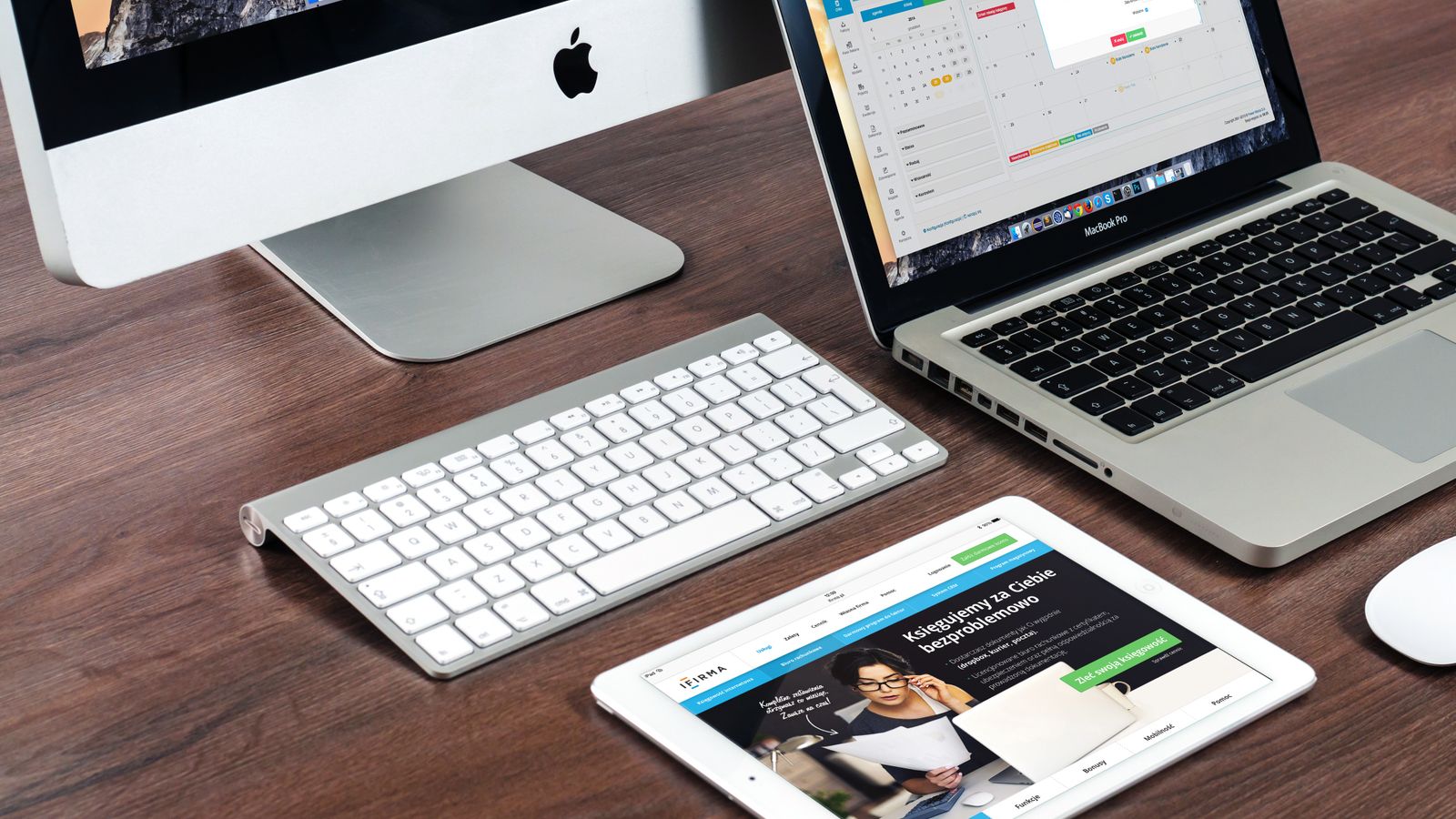
This guide walks through exactly how to think about that pairing: which specs actually matter, how ecosystem choice affects daily friction, and the step-by-step process for setting up both devices so they feel like one connected system rather than two unrelated purchases.
What You’ll Need Before You Start
Before matching a tablet to your desktop setup, gather the following so you can compare options intelligently instead of guessing:
- A clear list of the software you rely on daily (spreadsheets, design tools, video calls, note-taking apps) and whether each has a proper tablet version.
- Your current desktop’s operating system and manufacturer (Windows PC, Mac, or Linux machine) — this heavily influences which tablet will sync most smoothly.
- A sense of your cloud storage setup — Google Drive, iCloud, OneDrive, or Dropbox — since this is the bridge that keeps files consistent across devices.
- A rough budget range for the tablet itself, plus any accessories (keyboard case, stylus, stand) you’ll need to make it a genuine work device rather than a media-consumption toy.
- Fifteen to twenty minutes of uninterrupted setup time once the tablet arrives, so you can configure accounts properly the first time instead of patching things together later.
Step 1: Decide Whether You Need Ecosystem Matching or Just Compatibility
The single biggest decision is whether you want an ecosystem-matched pairing (Apple tablet with a Mac, or a Windows-based tablet with a Windows desktop) or a cross-platform pairing that relies on cloud services to bridge the gap.
Ecosystem matching gives you near-instant handoff: copy on one device, paste on the other, continue a browser tab exactly where you left off, and share a clipboard without touching a cloud app. Cross-platform pairing (say, an Android tablet with a Windows desktop) still works well for most people, but you’ll lean more heavily on cloud sync and third-party apps to keep things aligned. Neither approach is wrong — it depends on how tightly you want the two devices to talk to each other and how much you’ve already invested in one ecosystem’s apps and subscriptions.
Step 2: Match Screen Size and Resolution to Your Actual Tasks
A tablet that pairs well with a desktop for reviewing documents or taking notes doesn’t need the same screen real estate as one meant to replace a second monitor. Consider:
- 10 to 11-inch tablets are the sweet spot for note-taking, email, video calls, and light document review — portable enough to carry between meetings, still comfortable for an hour of reading.
- 12 to 13-inch tablets work better if you plan to use the tablet as a genuine secondary display or for detail-heavy work like spreadsheets, design mockups, or split-screen multitasking.
- Resolution should be sharp enough to read small text comfortably at arm’s length — look for at least 2000 x 1200 pixels on a mid-size tablet so text doesn’t look soft next to your desktop monitor.
If your desktop setup already includes a large primary monitor, you likely want the tablet to complement rather than duplicate that experience, so leaning smaller and more portable often makes more sense.
Step 3: Check Processor and RAM Against Your Desktop’s Workload
Your tablet doesn’t need to match your desktop’s raw power, but it does need enough headroom to run the same core apps without stuttering. As a general rule:
- 8GB of RAM is a reasonable minimum if you’re running multiple browser tabs, a note-taking app, and a video call simultaneously.
- A mid-tier or higher chipset (rather than the cheapest entry-level tablet processor) keeps app-switching smooth, which matters more on a work device than raw benchmark scores.
- If your desktop workload involves heavier tasks — video editing, large spreadsheets, CAD-adjacent work — treat the tablet as a lightweight companion for review and communication rather than trying to replicate that power in a slate form factor.
For a closer look at models built specifically with productivity in mind, browse our roundup of Tablets for Work, which filters out consumer-focused models in favor of ones with better multitasking support and accessory ecosystems.
Step 4: Align Accessories So Both Devices Feel Familiar
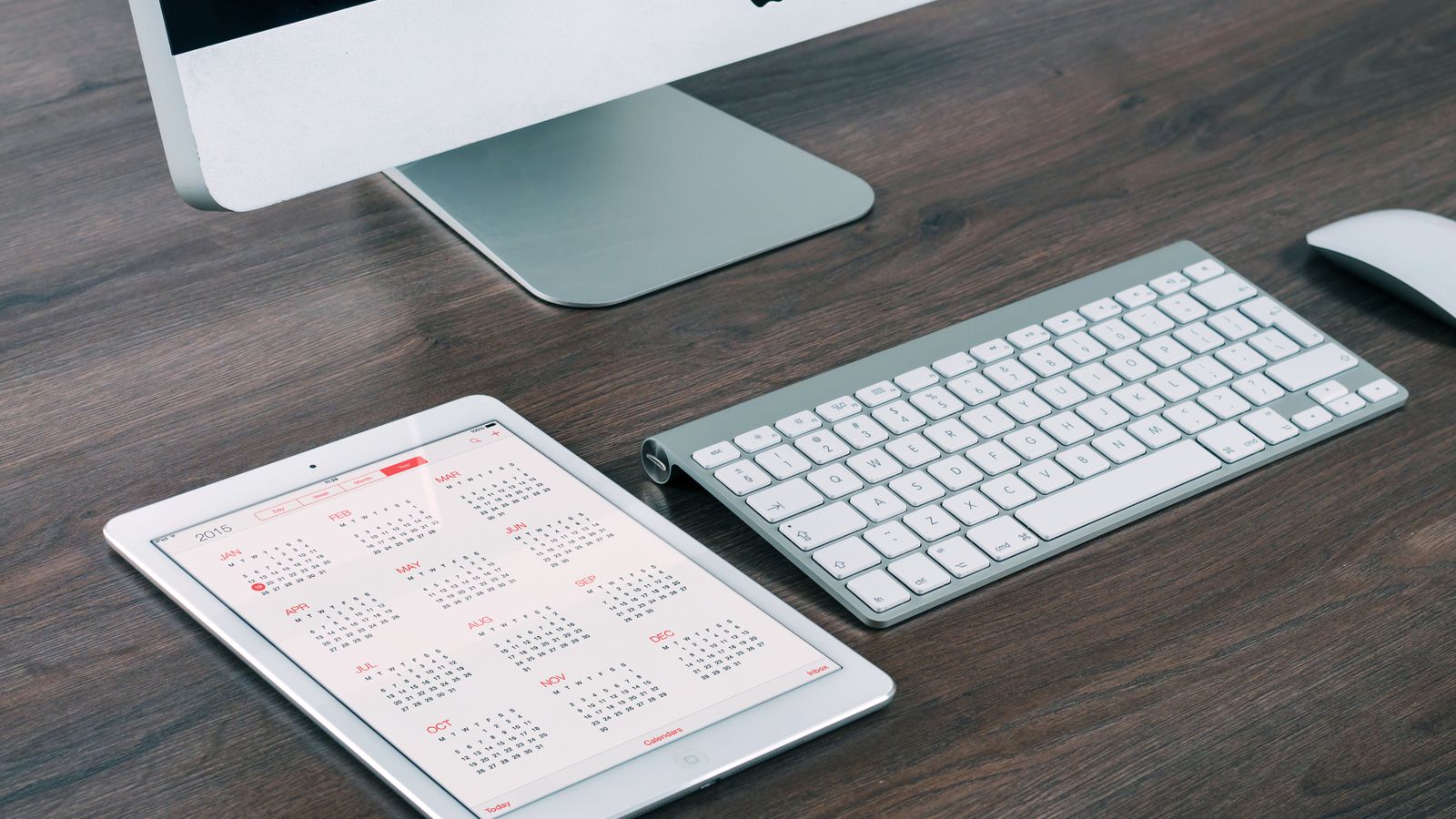
A tablet that pairs well with your desktop should feel like an extension of it, not a completely different interface you have to relearn. A few small choices make a big difference:
- Choose a keyboard case or Bluetooth keyboard with a similar layout to your desktop keyboard, so muscle memory carries over for shortcuts and typing rhythm.
- Match your stylus or trackpad accessory to how you actually work — if your desktop workflow is mouse-heavy, prioritize a tablet with solid trackpad support over one built mainly for pen input.
- Use the same wallpaper, app icon layout logic, and folder naming conventions on both devices so navigating either one feels instantly familiar.
- Set up a shared bookmarks or favorites folder in your browser so frequently used work sites appear identically on both screens.
Step 5: Sync Accounts, Cloud Storage, and Clipboard Tools
This is the step that actually makes the pairing functional day to day. Work through it methodically:
- Sign into the same cloud storage account (Google Drive, OneDrive, iCloud, or Dropbox) on both the tablet and the desktop, and confirm the sync status shows “up to date” on each before moving on.
- Install the same note-taking and task-management apps on both devices, using cross-platform tools rather than device-exclusive ones if your tablet and desktop run different operating systems.
- Turn on clipboard sharing or a universal clipboard tool if your ecosystem supports it, so copied text and links move between devices without emailing them to yourself.
- Set your browser to sync bookmarks, saved passwords, and open tabs across devices, so a tab left open on the desktop is waiting for you on the tablet.
- Test file handoff by creating a document on the desktop, opening it on the tablet, editing it, and confirming the edit appears back on the desktop within a few seconds.
Step 6: Set Up a Consistent Docking and Display Routine
Once accounts are synced, decide how the tablet physically fits into your desk setup. Many people use a stand or dock to position the tablet beside their monitor as a reference screen for chat apps, calendars, or a second document. If you want a full third-screen experience instead, check whether your tablet supports sidecar-style extended display features with your specific desktop — this varies significantly by ecosystem and is worth confirming before you buy rather than after.
If your existing desktop setup feels underpowered next to a new tablet, it may be worth reassessing the desktop itself rather than only upgrading the tablet — our guide to desktop computers covers models that pair well with tablet-based workflows and multi-device syncing.
Common Mistakes to Avoid
- Buying the tablet first, without checking software compatibility. Confirm your essential work apps have full-featured tablet versions before committing — some professional software still only offers a stripped-down mobile app.
- Ignoring keyboard case quality. A cramped or mushy keyboard case undermines the whole point of using the tablet for real work, not just browsing.
- Assuming cross-platform sync is instant. Some cloud services sync with a noticeable delay; test this before relying on it during a live meeting or deadline.
- Overbuying tablet specs to match a powerful desktop. The tablet’s job is usually portability and quick-access tasks, not replicating your desktop’s full workload — spend accordingly.
- Skipping a proper stand or dock. Propping a tablet against a book works short-term, but a stable stand keeps the screen at a usable angle and protects the device during daily use.
When a Laptop Might Fit Better Than a Tablet
If you frequently need a full keyboard, more processing headroom, and the ability to run desktop-grade software without compromise, a laptop may complement your desktop better than a tablet does — especially for travel-heavy work. It’s worth comparing both options honestly before you commit to either accessory ecosystem. Our breakdown of the best laptops for working from home can help you weigh that trade-off against a tablet-based setup.
Frequently Asked Questions
Do my tablet and desktop need to be the same brand?
No, but matching brands (or at least matching ecosystems) makes handoff features like universal clipboard, continuity camera, and instant file sharing far smoother. Cross-brand pairings still work fine through cloud storage and cross-platform apps — they just require a bit more manual syncing.
How much should I budget for a work tablet to pair with my desktop?
Mid-range tablets built for productivity typically offer the best balance of performance and price for pairing with a desktop workflow. Add a keyboard case and stylus to your budget if your workflow depends on either, since these accessories are often sold separately.
Can I use my tablet as a second monitor for my desktop?
Many modern tablets support extended-display or sidecar-style features, letting them act as an additional screen when connected wirelessly or via cable. Support varies by manufacturer and operating system, so confirm compatibility with your specific desktop before relying on this feature.
What’s the easiest way to keep files consistent between the two devices?
A single cloud storage account signed into both devices, with sync confirmed and automatic backup enabled, is the simplest and most reliable method. Avoid manually emailing files back and forth, since it’s easy to end up editing an outdated version by mistake.
Should I replace my desktop or my tablet first if my current setup feels mismatched?
Start with whichever device is causing the most daily friction — if software constantly lags or crashes, that’s usually the desktop; if you’re avoiding using the tablet altogether because it feels clunky, address that first. Matching doesn’t have to happen in one purchase, and gradually upgrading one device at a time is often more budget-friendly.