If you’re trying to fit a full desktop computer into a space the size of a paperback book, or you’d rather hide the computer entirely behind your monitor, a mini PC is almost certainly the answer. These compact systems pack a real CPU, RAM, and storage into a chassis that’s often just a few inches on each side — small enough to sit on a shelf, tuck behind a display, or mount to a wall — without giving up the everyday performance most people need for office work, streaming, or a light home server. After comparing 9 mini PCs currently listed on Amazon across processor class, memory, storage expandability, connectivity, and verified customer feedback, the strongest all-around pick is the KAMRUI AK1PLUS Mini PC Computer, which pairs a dependable Intel Celeron N5095 processor with 16GB of RAM and a large base of recent buyers. The picks below span a budget office box, VESA-mountable models built to disappear behind a monitor, and higher-wattage options with enough headroom for light gaming, so you can match one to how you actually plan to use it instead of picking blind.




Top Picks at a Glance
- Best Overall: KAMRUI AK1PLUS Mini PC Computer – a balanced Intel Celeron N5095 build with 16GB of RAM, 256GB of SSD storage, and one of the largest verified review bases in this comparison.
- Best Budget: Bmax Mini PC B1 Plus – the lowest-cost option here, with an Intel Celeron J3355 chip and M.2 SSD expansion for adding storage later.
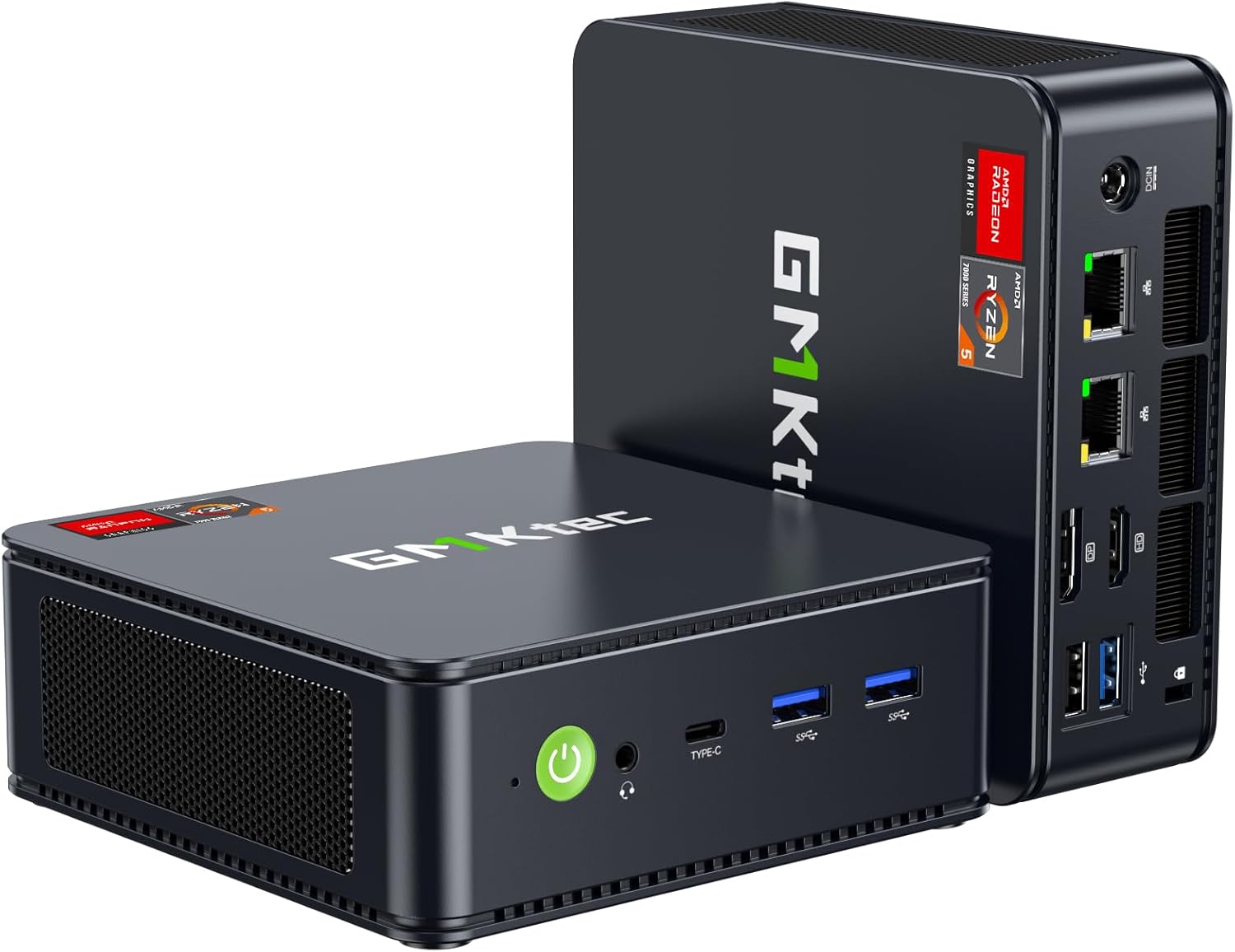
- Best for Power and Multitasking: GMKtec M6 Ultra Gaming Mini PC – built around a Ryzen 7640HS processor with 32GB of DDR5 RAM, 1TB of SSD storage, and USB4 for fast external drives or a dock.
- Best for Quiet Office Use: ACEMAGIC Mini PC – a Ryzen 7330U build listed with a quiet-cooling design at a moderate 28W power draw, aimed at everyday multitasking without excess fan noise.
- Best for Home Theater and Multi-Monitor Setups: KAMRUI Pinova P2 Mini PC – supports triple 4K display output, a strong fit for a media room or a desk running more than two screens.
- Best for Light Gaming: BOSGAME P6 Ryzen 9 6900HX Mini PC – the highest customer-rated pick in this group, with a mobile Ryzen 9 chip that has enough graphics headroom for lighter titles.
- Best Entry-Level Pick: GMKtec G3S Mini PC – a straightforward Intel N95 build for basic browsing, documents, and streaming at a more accessible price point.
- Best Business/Brand-Name Pick: HP EliteDesk 800 G4 Mini Tiny Business PC – an established-brand option with dual monitor support, for buyers who want a recognizable name on the box.
- Best for a Light Home Server: BOSGAME E5 11 Pro Mini PC – pairs dual 2.5GbE LAN ports with listed Linux SSH support, useful for file sharing or self-hosted apps.
What Is a Mini PC (and How Is It Different From a NUC)?
A mini PC is a full desktop computer — a real CPU, RAM, storage, and a set of display and USB ports — built into a chassis small enough to fit in one hand or sit flat on a shelf. Unlike a laptop, there’s no built-in screen, keyboard, or battery; you supply those separately and the unit itself just handles the computing. Where this category differs from a typical small-form-factor tower is scale: most towers still measure over a foot in at least one dimension, while these systems are commonly under 5 inches on their longest side.
“NUC” gets used loosely as a stand-in for the whole category, but it’s technically Intel’s own line of reference designs, first introduced years ago and since sold and licensed to other manufacturers. Plenty of the machines on the market today, including several in this guide, are built by companies with no direct tie to that original lineup — brands like KAMRUI, GMKtec, Bmax, and BOSGAME design their own compact boards and cases around Intel or AMD mobile processors. Every NUC is a mini PC, but the reverse isn’t true, and it’s worth knowing the difference so you don’t rule out a good option just because the listing doesn’t use that exact word.
Mini PC vs Traditional Desktop Tower: Space Savings vs Upgradability
The core trade-off here is space against flexibility. A mini PC gives up almost no desk real estate, runs quieter at idle than most towers, and can often be tucked out of sight entirely — but it also gives up nearly everything about a tower that makes long-term upgrades easy. Most models have room for one extra M.2 SSD at best, no slot for a discrete graphics card, and a fixed cooling setup sized for the CPU that shipped in the box, not whatever you might want to add later.
A traditional desktop tower flips that trade-off around: more desk or floor footprint in exchange for multiple drive bays, expansion slots for a dedicated GPU, and airflow designed to handle sustained, heavy workloads without throttling. If you edit video regularly, play graphically demanding games, or just want a machine you can keep upgrading piece by piece for years, a tower is still the better foundation — our desktop computers guide covers that traditional tower and all-in-one category in depth. Going small makes more sense when the job is office productivity, media playback, light multitasking, or a small home server, and the physical footprint matters as much as raw performance.
VESA Mounting: Getting It Off the Desk Entirely
One of the biggest practical advantages this form factor has over a tower is that many models can be mounted directly to the back of a monitor, clearing the desk of a system unit altogether. This relies on the VESA mounting standard — a pattern of screw holes, most commonly spaced 75x75mm or 100x100mm, that’s already built into the back of most monitor stands and wall mounts. A compatible unit either ships with a small VESA bracket in the box or can use a widely available third-party bracket sized for that same hole pattern.
Before assuming any given model will mount this way, check the listing specifically for VESA compatibility rather than guessing from the product photos, since not every compact chassis includes the mounting screw holes on its underside. It’s also worth confirming your monitor’s stand or arm actually exposes its own VESA pattern, since some all-in-one monitor stands cover it up. Once mounted, the computer draws power from a cable routed along the monitor arm or down to the desk, and the only things left on your desk are the keyboard, mouse, and monitor itself — a meaningful change for anyone trying to reclaim desk space without switching to a laptop.
Fanless and Quiet Mini PCs: When Silence Matters
Cooling design splits this category into two rough camps. Actively cooled models use a small internal fan, which keeps the CPU running closer to its rated speed under sustained load but introduces some amount of fan noise, especially when the unit is working hard. Fanless, passively cooled builds rely entirely on a metal chassis or heat sink to dissipate warmth, which means genuinely silent operation but a lower ceiling for how long the CPU can run at full speed before it has to slow down to avoid overheating.
For a media room, a bedroom office, or any spot where you’d notice a fan spinning up, a fanless option is worth prioritizing even if it costs a little performance headroom. For a primary work machine that regularly runs demanding tasks back to back, an actively cooled build with a well-reviewed thermal design is usually the safer choice, since it can sustain higher performance for longer without throttling. Several products in this guide, including the ACEMAGIC pick, are specifically marketed around a quieter cooling profile, which is worth checking for directly in the listing if noise is a priority for you.
Matching CPU, RAM, and Storage to Your Use Case
Not every mini PC is built for the same job, and matching the internals to what you’ll actually do with it matters more here than with a tower, since there’s little room to change your mind later. Budget-oriented Intel Celeron and N-series chips, like the ones in the GMKtec G3S and Bmax B1 Plus, are a good fit for browsing, documents, and streaming, but they’ll feel stretched under heavier multitasking. Mainstream Ryzen and Core U-series processors, as found in the ACEMAGIC pick and KAMRUI Pinova P2, handle everyday multitasking and light creative work more comfortably. Higher-wattage Ryzen H-series chips, like the ones powering the GMKtec M6 Ultra and BOSGAME P6, add enough graphics and CPU headroom for lighter gaming and more demanding multitasking, though none of these units include a discrete graphics card, so expectations for gaming performance should stay modest.
RAM and storage matter just as much as the processor. Some models use SO-DIMM memory that you can open the case and swap or add to later, while others solder the RAM directly to the board, fixing your capacity permanently at purchase. Storage follows a similar split: a build with a spare M.2 NVMe slot lets you add a second drive down the road, while one built around fixed eMMC storage locks you into whatever capacity it ships with. If you expect your needs to grow, favor a listing that explicitly mentions RAM or SSD expansion in the specifications rather than assuming it’s included.
Ports, Displays, and Connectivity to Check Before You Buy
Because there’s so little internal room for expansion cards, its usefulness depends heavily on the ports it ships with out of the box. If you run more than one monitor, count the HDMI and DisplayPort outputs on the listing carefully — several products in this guide support triple 4K display output, which matters for a multi-monitor desk or a home theater setup driving both a TV and a secondary display. USB-C or USB4 ports add the option to connect a dock, an external SSD at high speed, or in some cases even a discrete external GPU enclosure.
Networking is worth a second look if you’re considering this category for anything beyond basic browsing. Standard Gigabit Ethernet is fine for everyday use, but a unit with 2.5GbE LAN — like the BOSGAME E5 11 Pro, which also lists Linux SSH support — is better suited to file transfers, media streaming, or running lightweight home-server software. Wi-Fi standard matters too; Wi-Fi 6 or 6E support gives more headroom on a crowded home network than older Wi-Fi 5 hardware. None of this shows up if you only glance at the CPU spec, so it’s worth reading the full connectivity list before deciding.
How We Evaluated These Mini PCs
These recommendations come from a review of publicly available Amazon listing data — processor and RAM specifications, storage type and expandability, port selection, display output count, cooling design as described by the manufacturer, verified customer review volume, and average rating — for products returned under searches specifically targeting this category. We cross-checked every product name and ASIN against its live Amazon listing before including it here, prioritized listings with a meaningful volume of recent customer reviews, and avoided sponsored placements where a comparable non-sponsored option was available. This is a specification and listing-data comparison rather than hands-on lab testing, so treat processor performance, thermal behavior, and noise level as a starting point for your own research, and confirm current specs and pricing on the product page itself before buying.
Common Mistakes When Buying a Mini PC
The most common mistake is expecting discrete-GPU gaming performance, when even the higher-wattage Ryzen H-series options in this comparison rely on integrated graphics rather than a dedicated card. A close second is ignoring RAM and storage expandability, then discovering after purchase that the memory is soldered or the drive can’t be upgraded once daily use starts to feel cramped. Shoppers also frequently skip checking VESA-mount compatibility before assuming any compact system can be tucked behind a monitor, only to find their specific model doesn’t have the mounting holes or bracket needed.
Another frequent error is underestimating cooling needs for sustained workloads — a fanless build that’s silent during light browsing can throttle noticeably during a long video export or a multi-hour work session. Finally, some buyers forget this is a bare system unit; unless the listing specifically says otherwise, you’ll still need to supply your own keyboard, mouse, and monitor, and factor that into your total setup cost before comparing prices across different options.
Mini PC Buying Checklist
- Decide which use case matters most — office productivity, home theater/media, light home server, or light gaming — before comparing processors.
- Check whether RAM is user-upgradable (SO-DIMM) or soldered, and buy enough capacity up front if it’s fixed.
- Confirm storage type and whether there’s a spare M.2 NVMe slot for adding a drive later.
- Count the HDMI/DisplayPort outputs against how many monitors you actually plan to run.
- Verify VESA-mount compatibility (75x75mm or 100x100mm) if you want it hidden behind your monitor.
- Choose actively cooled for sustained heavy workloads, or fanless if silent operation matters more than peak performance.
- Check Ethernet speed and Wi-Fi standard if you plan to use it for file transfers, streaming, or a home server.
- Confirm the operating system included and whether it’s a licensed, activated copy.
If you go through this checklist and decide the limited internal expansion here isn’t a fit for what you need, our desktop computers guide covers traditional towers and all-in-ones with more room to grow. And if you already own a full-size tower and just need to get it off the floor or out from under your desk, see our PC tower stands guide for freestanding platforms or our CPU holders guide for under-desk mounting brackets — neither of those is the right fit here, but both solve a related desk-clearing problem for a larger case.
FAQ
What’s the difference between a mini PC and a NUC?
It’s the broad category of ultra-compact desktop computers, while a NUC is specifically Intel’s own line of reference designs within it. Many products on the market today are built by other manufacturers with no direct connection to that original NUC lineup, so the two terms aren’t strictly interchangeable even though they’re often used that way in casual conversation.
Can a mini PC really replace my desktop tower?
For office work, browsing, streaming, and light multitasking, yes — it can comfortably replace a tower for most everyday tasks. Where it falls short is heavy, sustained workloads and serious gaming, since most models rely on integrated graphics and have very little room for internal upgrades compared with a full tower.
Can it be mounted behind my monitor?
Many can, provided both the unit and your monitor stand support the same VESA hole pattern, typically 75x75mm or 100x100mm. Check the specific listing for VESA compatibility before buying rather than assuming every compact chassis includes the mounting holes.
Are mini PCs good for gaming?
They can handle lighter or older titles reasonably well, especially the higher-wattage Ryzen H-series models, but none of the products in this comparison include a discrete graphics card. If demanding modern gaming is the priority, a traditional tower with a dedicated GPU is still the better choice.
Can I upgrade the RAM or storage later?
It depends on the specific model. Some builds use SO-DIMM RAM and include a spare M.2 NVMe slot that make later upgrades straightforward, while others solder the RAM to the board and ship with fixed eMMC storage that can’t be expanded. Check the listed specifications closely before assuming either way.
Is a mini PC good for running a home server?
It can handle light home-server duties like file sharing, media streaming, or a few self-hosted apps reasonably well, particularly models with 2.5GbE Ethernet and enough RAM to run multiple background services. For heavier server workloads or large storage arrays, a tower with more drive bays is usually a better long-term fit.