A graphics tablet is a different category of input device from anything else on this site: instead of a mouse or trackpad, you draw with a pressure-sensitive stylus on a flat surface, and the tablet translates every stroke, tilt, and press into a line on your screen. That’s a meaningful shift for anyone doing digital art, illustration, photo retouching, or design work, because a mouse simply can’t reproduce the pressure and angle control a pen gives you. The two biggest decisions when shopping for graphics tablets are whether you want a pen-only model (no built-in screen, so you look at a separate monitor while drawing on the tablet’s surface) or a pen-display model (a screen built directly into the tablet, so you draw right where you’re looking), and how large an active drawing area actually fits your desk and your work. Based on real, currently listed Amazon products, our top overall pick is the Wacom Intuos Small Wired Graphic Drawing Tablet, a compact, battery-free-pen model from one of the most established names in the category and a reliable starting point whether you’re new to the category or adding a second tablet to your setup.





Top Picks at a Glance
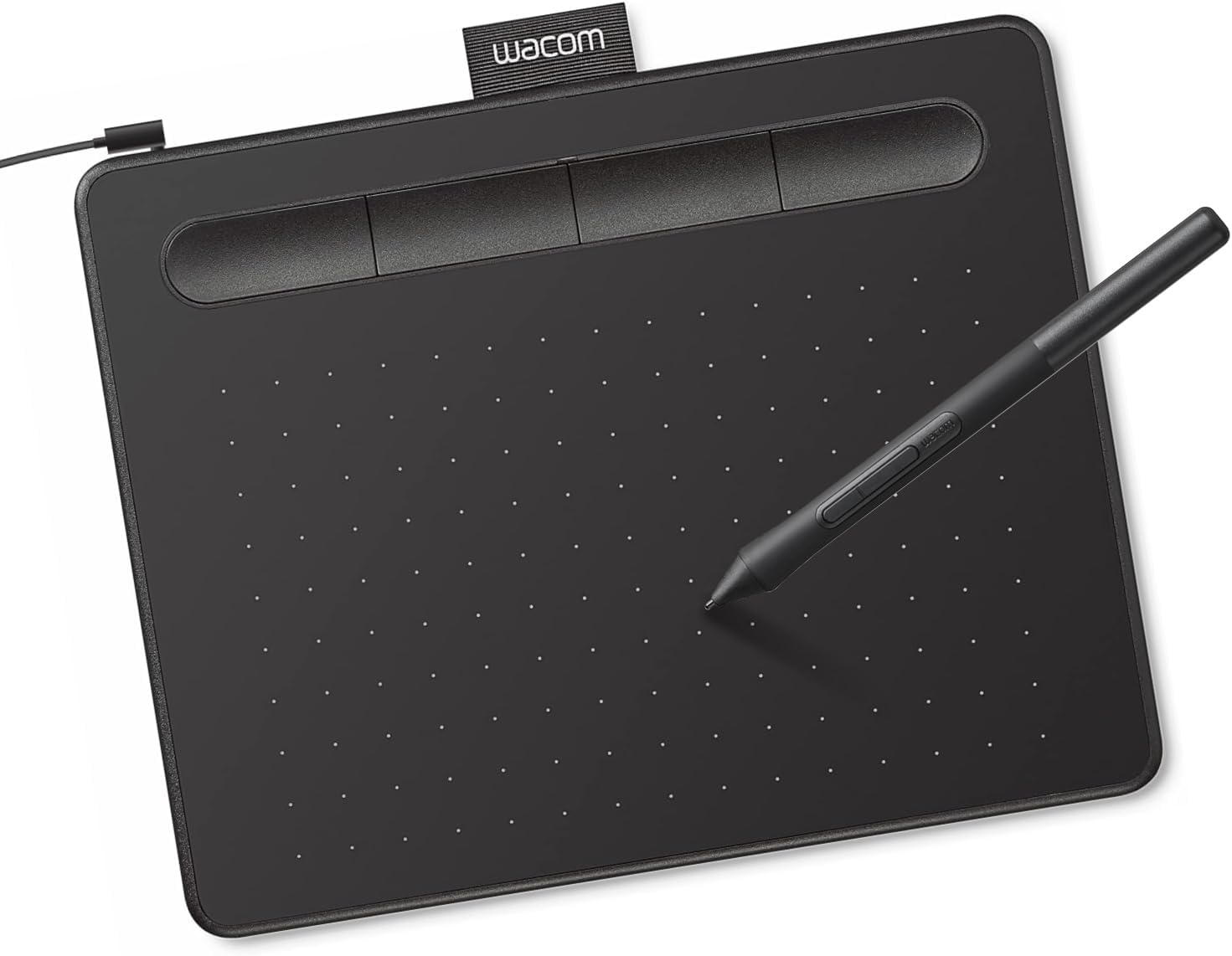
- Best Overall: Wacom Intuos Small Wired Graphic Drawing Tablet — a battery-free pen, 4 ExpressKeys, and broad OS support make this a dependable pick for most first-time and returning tablet buyers.
- Best Budget: HUION Inspiroy H640P 6×4 inch Drawing Tablet — 8192 levels of pen pressure and 6 hot keys in a compact 6×4-inch surface for anyone testing digital art on a tight budget.
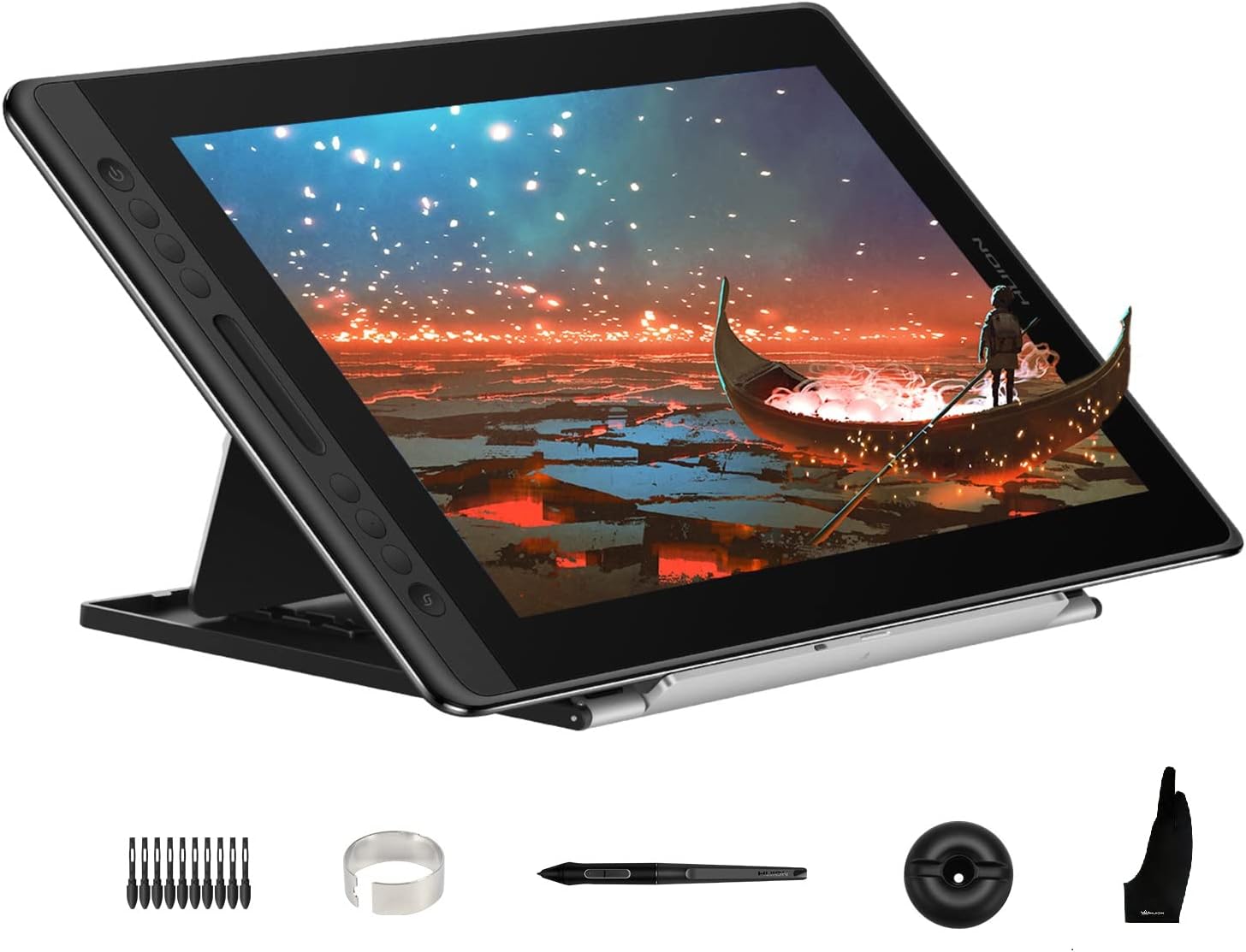
- Best Pen Display for Most Artists: HUION Kamvas 13 (Gen 3) Drawing Tablet with Screen — a 13.3-inch full-laminated screen with 99% sRGB coverage and 16384 pressure levels for drawing directly where you look.
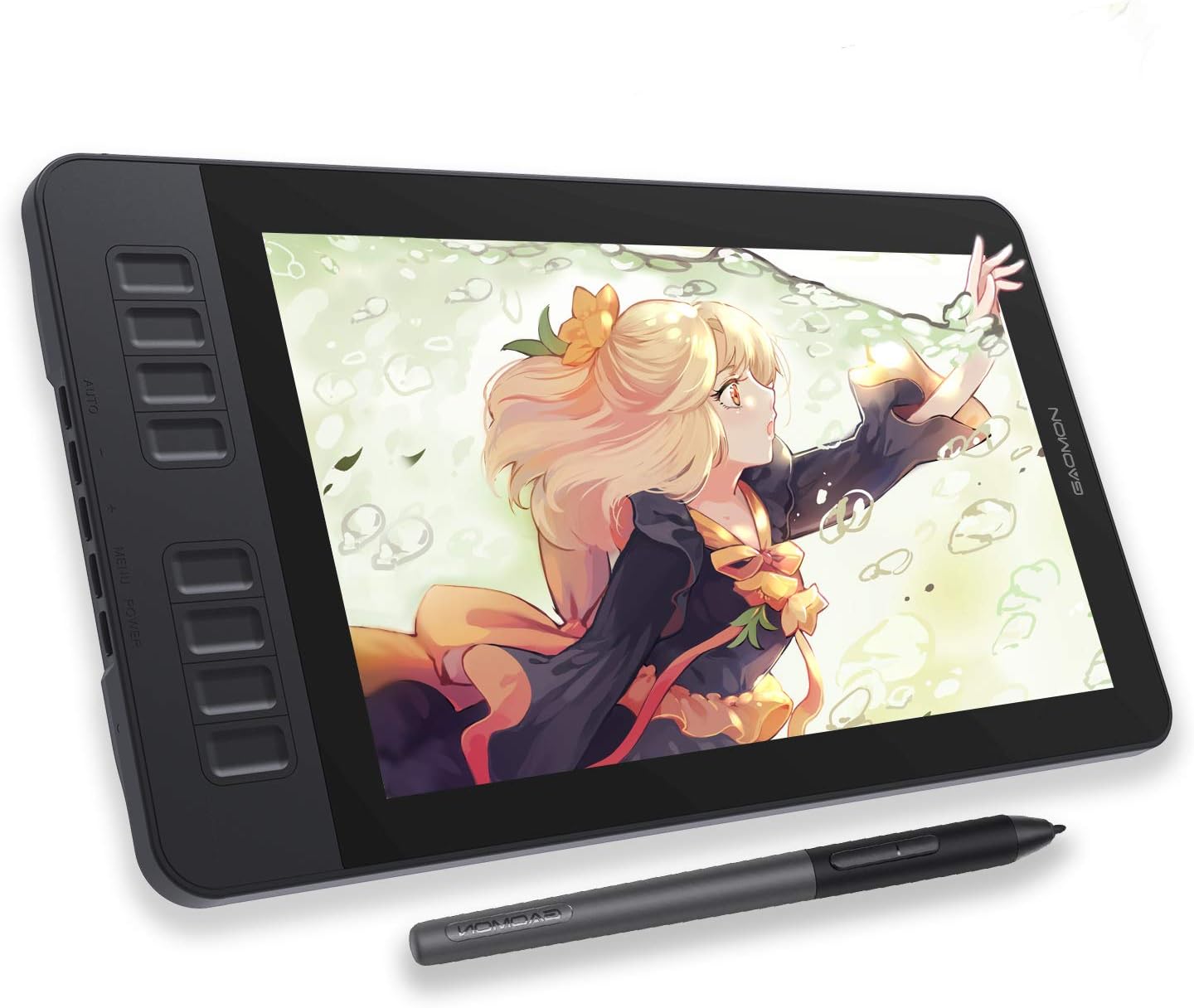
- Best Budget Pen Display: GAOMON PD1161 Drawing Tablet with Screen — an 11.6-inch anti-glare pen display with tilt support, a lower-cost way to try screen-based drawing.
- Best Wireless Pen-Only Tablet: Wacom Intuos Medium Bluetooth Graphic Drawing Tablet — a larger active area with Bluetooth connectivity for a cleaner, cable-free desk.
- Best Large Drawing Area (Pen-Only): XPPen Deco 01 V3 10×6 Drawing Tablet — a 10×6-inch surface with 16K pressure sensitivity and 8 shortcut keys for artists who want more room to move.
- Best for Professional Illustration: HUION Kamvas Pro 16 Drawing Tablet with Screen — a 15.6-inch fully laminated display with 120% sRGB and a touch bar for detail-heavy illustration and animation work.
- Best Premium Pen Display: XPPen Artist 22R Pro Drawing Tablet with Screen — a 21.5-inch full-laminated pen display with 120% sRGB coverage and 20 shortcut keys for studio-level setups.
Pen-Only vs Pen-Display Graphics Tablets: Which Type Fits Your Workflow
Every tablet in this category falls into one of two types, and understanding the difference is the single most important decision in this whole buying process. A pen-only model has no screen at all — you rest your hand on a flat, sensor-lined surface while looking up at your monitor, and the tablet translates your pen movements into cursor and stroke input on screen. A pen-display graphics tablet, by contrast, builds a full color screen into the drawing surface itself, so you’re literally drawing on the line you’re creating, much closer to using a physical sketchbook.
Pen-only tablets, like the Wacom Intuos Small and the XPPen Deco 01 V3 on this list, are lighter, more portable, and considerably cheaper — often well under $50. The trade-off is a short adjustment period: your hand moves on one surface while your eyes track a separate screen, which takes some hand-eye coordination to get used to, though most people adapt within a few sessions. Pen-display models remove that disconnect entirely, which is a real advantage for precision-heavy work like inking or retouching, but that convenience comes at a higher price and more desk space, since the tablet itself doubles as a monitor. If you’ve never used a graphics tablet before, starting with an affordable pen-only model before committing to a pen-display is a reasonable way to confirm you’ll stick with digital drawing before spending several hundred dollars.
Active Drawing Area: How Big Does Your Graphics Tablet Need to Be
The “active drawing area” is the actual sensor-covered surface where your pen registers input, and it’s usually smaller than the tablet’s total footprint once you subtract the bezel and any built-in shortcut keys. Compact tablets, such as the HUION Inspiroy H640P at 6×4 inches, are easy to fit on a crowded desk and travel well, but that smaller surface means your hand has to move less to cover the same on-screen distance — fine for note-taking or quick sketches, more cramped for detailed illustration work.
Larger active areas, like the 10×6-inch surface on the XPPen Deco 01 V3, give your wrist and arm more room to make broad, natural strokes, which matters if you’re working on full illustrations rather than quick touch-ups. Pen-display graphics tablets add another consideration: their “drawing area” is also their visible screen size, so a 13.3-inch model like the HUION Kamvas 13 sits comfortably on most desks, while an 21.5-inch pen display like the XPPen Artist 22R Pro behaves more like a dedicated secondary monitor and needs real desk real estate plus, often, its own adjustable stand. Measure your available desk space before buying — a tablet that’s too large for your setup gets pushed to the side and used less than one sized correctly from the start.
Pressure Sensitivity and Tilt: What the Numbers Actually Mean
Pressure sensitivity is usually listed as a “levels” number — 8192 or 16384 are common specs among the tablets in this guide — and it describes how finely the tablet can distinguish between a light touch and a hard press. In practice, this controls how naturally your line varies in thickness and opacity as you draw, similar to how a physical pencil or brush responds to pressure. Higher numbers on paper sound like a bigger upgrade than they usually are in practice; the difference between 8192 and 16384 levels is subtle for most artists, and your drawing software has to actually support the higher range for it to matter at all.
Tilt recognition is a related but separate feature: it detects the angle at which you’re holding the pen, which lets supported brushes in programs like Photoshop or Clip Studio Paint shade and blend the way a tilted charcoal pencil or marker would. Several graphics tablets in this roundup, including the HUION Inspiroy H950P-style stylus tech used across the HUION lineup and the XPPen models here, include tilt support alongside pressure sensitivity. If you do a lot of shading or painting-style work, tilt support is worth checking for specifically rather than assuming every tablet includes it by default.
Programmable Express Keys and Shortcut Workflow
Most graphics tablets, pen-only and pen-display alike, include a set of physical buttons along the edge — usually called ExpressKeys, hot keys, or shortcut keys depending on the brand — that you can map to common actions like undo, brush size, zoom, or switching layers. This matters more than it might sound, because reaching for the keyboard mid-stroke breaks your drawing flow in a way that a well-placed thumb press doesn’t. The Wacom Intuos Small includes 4 ExpressKeys, while the XPPen Artist 22R Pro and its 20 shortcut keys sit at the other end of the spectrum, giving professional illustrators room to map an entire toolbar’s worth of commands.
How many express keys you actually need depends on your software and habits more than your skill level. Someone who mostly sketches in a single app might be perfectly served by four or six keys, while an animator switching between multiple tools, layers, and color palettes throughout the day benefits from a tablet with a larger, more customizable set. Take a few minutes after unboxing any new tablet to actually configure these keys for the software you use most — an unmapped shortcut button is just wasted real estate on the device.
Color Accuracy and Screen Quality on Pen-Display Tablets
This section applies specifically to pen-display tablets, since pen-only models simply pass input through to whatever monitor you’re already using. For screen-based tablets, sRGB coverage tells you how much of the standard color gamut the built-in display can accurately reproduce — the HUION Kamvas 13 lists 99% sRGB, while the HUION Kamvas Pro 16 and XPPen Artist 22R Pro both list 120% sRGB, which generally means richer, more accurate color for illustration and photo retouching work where color fidelity matters.
Anti-glare or anti-sparkle glass is another spec worth checking on pen-display tablets, since a reflective screen makes it harder to judge your work under normal room lighting. Full lamination — where the glass, sensor layer, and display are bonded together rather than left with an air gap — reduces a visual effect called parallax, where the tip of your pen appears to draw slightly offset from where the line actually lands on screen. Nearly every pen-display tablet in this guide uses full lamination for exactly that reason; it’s one of the clearest quality signals to look for if you’re comparing screen-based models in a similar price range.
Do Graphics Tablets Replace a Mouse Entirely
Not usually, and it’s worth setting that expectation before you buy. A tablet like this is built to replace the mouse for drawing, painting, and precise pen-based work — that’s what the stylus and pressure sensitivity are designed for. But most artists and designers still keep a mouse within reach for everyday tasks that don’t involve drawing: browsing files, navigating spreadsheets, clicking through menus, or general web use, where a pen can feel slower or less precise than a pointing device built for that purpose.
This is also the clearest way to separate this guide from our related coverage of ergonomic mice for designers. That article covers mice built for creative software workflows — DPI precision, programmable buttons, and comfortable grips for hours of general navigation and shortcut use. It’s a different tool entirely: a graphics tablet is the device you switch to specifically when you’re drawing, sketching, or painting, using a pen instead of a pointing device. Many working artists genuinely use both — a tablet parked next to the keyboard for drawing sessions, and an ergonomic mouse for everything else — rather than treating one as a full replacement for the other.
How We Evaluated These Graphics Tablets
Every product in this guide was pulled from real, current Amazon listings rather than assumed or invented specs, with the goal of representing genuine options across the drawing tablet market rather than a single price tier. We split our picks between pen-only and pen-display models so this guide reflects both major types of graphics tablets, then checked pressure sensitivity levels, active drawing area size, express key counts, and — for screen-based models — sRGB coverage and lamination against each listing’s published specifications. We also weighed customer review volume and rating consistency, since a tablet with thousands of reviews at a stable 4.4-plus average tells you more about real-world reliability than a spec sheet alone. Pricing, star ratings, and review counts referenced in this guide reflect what was published on Amazon at the time of research and can shift over time, so it’s worth confirming current details before you buy.
Common Mistakes When Shopping for Graphics Tablets
- Chasing the highest pressure sensitivity number. The jump from 8192 to 16384 levels is subtle in practice and depends on your software supporting the higher range — active area size and build quality usually matter more day to day.
- Buying a pen-display before trying a pen-only tablet. If you’ve never used a graphics tablet, an inexpensive pen-only model is a lower-risk way to confirm digital drawing fits your workflow before spending several times more on a screen-based model.
- Never mapping the express keys. Shortcut buttons only save time if you actually configure them for your drawing software after setup — left on defaults, they add little value.
- Ignoring color accuracy on a pen-display purchase. If your work involves photo editing or color-critical illustration, skipping the sRGB coverage spec on a pen-display tablet can leave you second-guessing colors that look different once exported.
- Choosing an active area that doesn’t match your desk. A large-format tablet or pen display looks appealing in photos but can crowd a small desk enough that it gets used less than a properly sized model would.
Buying Checklist
Run through this list before you commit to any of the graphics tablets covered above — it’s a fast way to confirm a model fits your actual drawing habits rather than just its spec sheet.
- Decide between a pen-only tablet (cheaper, more portable) or a pen-display tablet (screen built in, more direct feel).
- Match the active drawing area to your desk space and the level of detail your work requires.
- Check the pressure sensitivity level and confirm your drawing software actually supports that range.
- Look for tilt recognition if you rely on shading or brush-angle effects.
- Count the express keys or shortcut keys and plan how you’d map them to your software.
- For pen-display models, check sRGB coverage, anti-glare glass, and full lamination.
- Confirm compatibility with your operating system and preferred drawing or design software before buying.
Frequently Asked Questions
What is a graphics tablet and how is it different from a regular mouse or ergonomic mouse?
It’s an input device that uses a pressure-sensitive pen on a flat surface, letting you draw, sketch, or paint with natural line variation instead of clicking and dragging with a mouse. An ergonomic mouse is still a pointing device for navigation, clicking, and shortcuts; it doesn’t offer pressure sensitivity or tilt recognition the way this kind of pen-based tablet does, which is why the two solve different problems even for the same creative professional.
Should I buy a pen-display or a pen-only graphics tablet as a beginner?
Most beginners are better served starting with an affordable pen-only tablet. It costs a fraction of a pen-display model, and the hand-eye coordination needed to draw on one surface while watching a separate screen usually becomes comfortable within a few practice sessions. If you’re confident you’ll stick with digital art, a pen-display model offers a more direct drawing feel, just at a considerably higher price.
How much pressure sensitivity do I actually need for digital art?
Most digital artists find 8192 pressure levels more than sufficient for smooth, expressive linework, and the step up to 16384 levels offers a subtle refinement rather than a dramatic change. What matters more than the raw number is whether your drawing software actually takes advantage of the range your graphics tablet offers.
What size active drawing area should I look for?
A compact 6×4-inch active area works well for quick sketches, note-taking, or a tight desk, while a 10×6-inch or larger surface gives more room for broad, natural strokes on detailed illustrations. For pen-display models, the drawing area is also the screen size, so factor in available desk space alongside how much detail your work demands.
Do I still need a mouse if I have a graphics tablet?
Yes, in most cases. It’s built for drawing and pen-based precision work, not general navigation, so most artists keep a mouse nearby for browsing files, using spreadsheets, or clicking through everyday software. Think of it as the tool you switch to for drawing sessions rather than a full mouse replacement.
Are cheaper graphics tablets good enough for learning digital art?
Yes. Entry-level pen-only tablets with solid pressure sensitivity and a handful of express keys are genuinely capable of professional-quality linework — the skill involved matters far more than the price tag at the learning stage. Upgrading to a larger active area or a pen-display model makes more sense once you have a clear sense of how you actually work.
Choosing among the best graphics tablets ultimately comes down to matching the type — pen-only or pen-display — and the active drawing area to how and where you actually plan to draw, rather than chasing the highest pressure sensitivity number on the box. If you’re building out the rest of a creative workstation, our guide to ergonomic mice for designers covers the pointing device many artists keep alongside their graphics tablet for everyday tasks, while wrist rest sets can help if long pen-holding sessions leave your wrist sore. If you’re leaning toward a pen-only tablet and need a solid second display to look at while you draw, our guide to desks for two monitors is worth a look, and light bars for desks can help keep colors looking consistent while you work. Whichever of the 8 picks here fits your drawing style, matching the tablet type and size to your actual workflow will matter more in 2026 than any single spec on the listing.